Goldfay user guide
A step-by-step guide to getting started with Goldfay — the online edition and the desktop program — with every page and its features explained with screenshots.
The system on the internet: runs in the browser on computers, Android and iPhone, with multiple branches, and your data on the server with a nightly backup. It also includes an online store for your shop.
Get started in 8 steps
- 1Create your account
Click “Sign in / New account” at the top of the site and enter your name, email and a password.
- 2Start the free trial
From “My account” → Online edition: enter the shop name, a shop code (English letters and numbers — you will sign in with it), the country and language, a manager username and password, and optionally today's 21K price. Your shop is ready instantly with a 14-day free trial with every feature.
- 3Sign in
The sign-in link for everyone: goldfay.com/app — shop code + username + password. To install it as an app: on the phone browser choose “Add to Home screen”.
- 4Update gold prices
From “Gold prices”: update online in one click (Egypt, Saudi Arabia and the UAE) or type one karat's price and the others are calculated automatically.
- 5Configure the settings
Shop details printed on invoices, the tax rate and what it applies to, the print size (80 mm or A4), karats, and categories with their default making charges.
- 6Add branches and staff
From “Branches” and “Users & permissions”: each employee gets a role, permissions and a maximum discount, and can be tied to one branch.
- 7Enter your stock
From “Inventory”: an opening balance of loose weight for each karat, and pieces with barcodes. If you used the desktop program, import all your data from a backup file in “Backup”.
- 8Start selling
From “Sales & purchases”. Then, if you like, enable the online store and e-invoicing. Before the trial ends, subscribe from your account — your data stays exactly as it is.
Dashboard
The first screen after signing in: the full picture of your gold and today's activity, for the current branch or all branches.
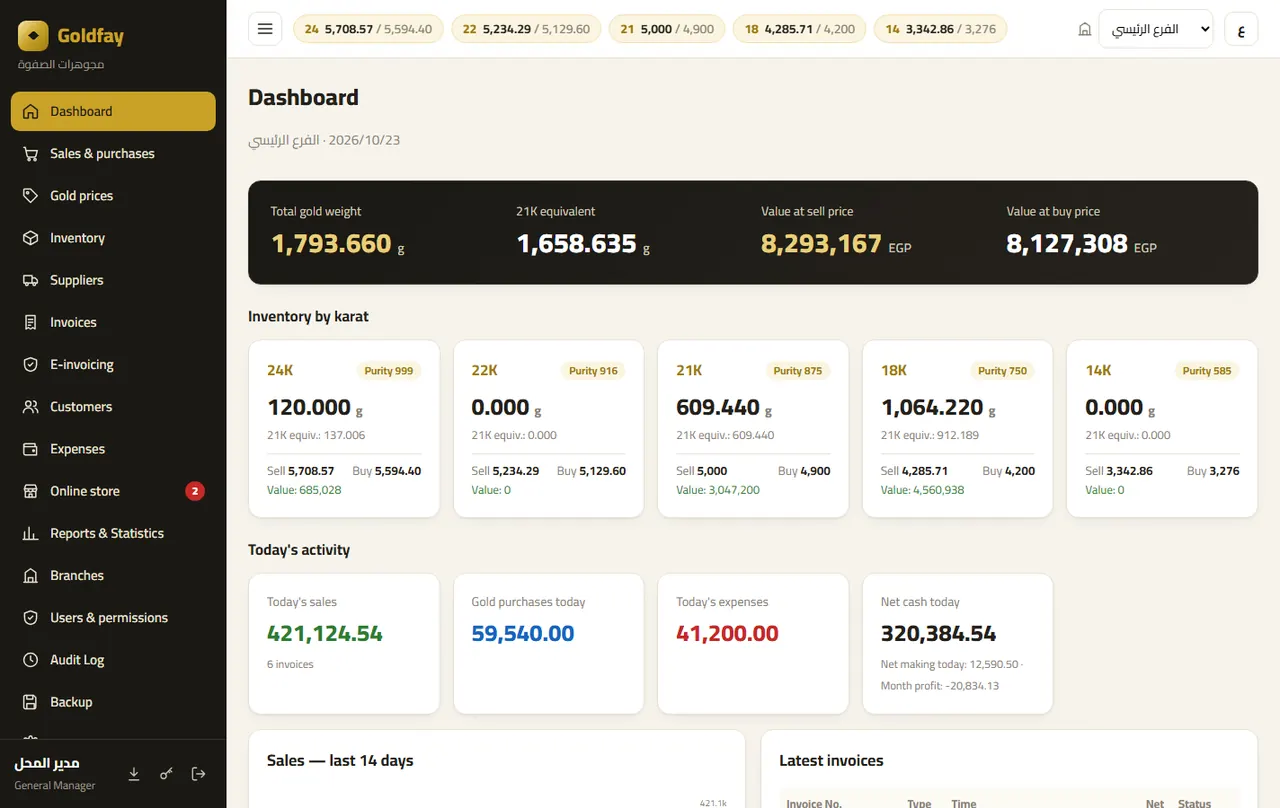
- Total gold weight and its 21K equivalent, valued at the sell and buy prices.
- A card per karat: weight, loose vs. pieces, and value.
- Today's sales, purchases and expenses, and the latest invoices.
- Alerts: missing karat prices, negative balances, new store orders.
- Branch selector at the top (for managers not tied to one branch).
Sales & purchases
A sales invoice or a scrap-gold purchase — each on its own (no gold-for-gold in one invoice), with totals calculated on the server in real time.
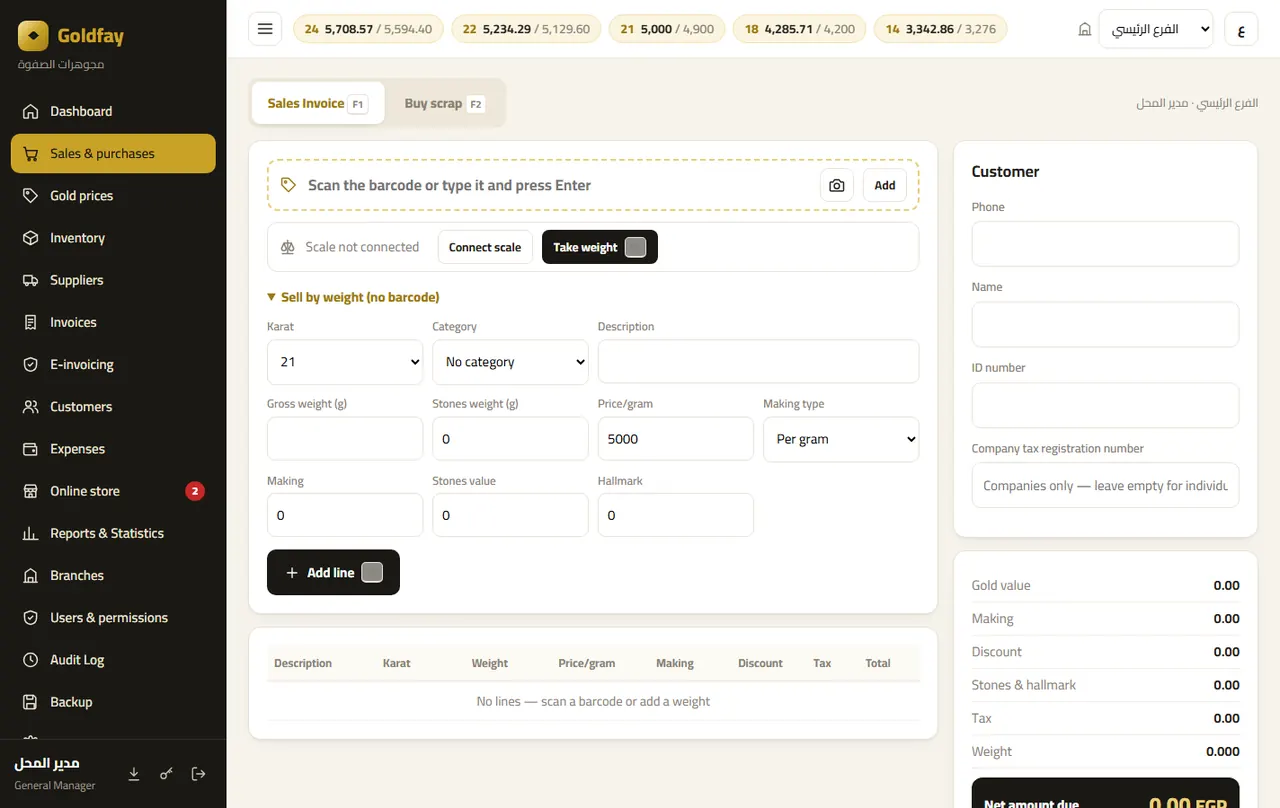
- Scan the barcode with a reader or the phone camera; the piece is added with its weight and making charge.
- Sell by weight without a barcode: karat, category, weight, making charge, stones and hallmark fee.
- Connect the scale from a computer (Chrome or Edge) and take the weight with “Take weight” (F5).
- Pay by cash, card or transfer, or a mix. Credit is off by default (hand-to-hand).
- Discounts or price changes beyond the seller's limit need a manager's approval with their password.
- Buying scrap requires the seller's ID number (can be turned off in settings).
- A “Send to the tax portal” tick when e-invoicing is set to “selected invoices”.
- Shortcuts: F1 sale · F2 purchase · F8 add line · F9 all cash · F12 save.
Gold prices
Sell and buy prices per karat — every invoice and the store are priced from here.
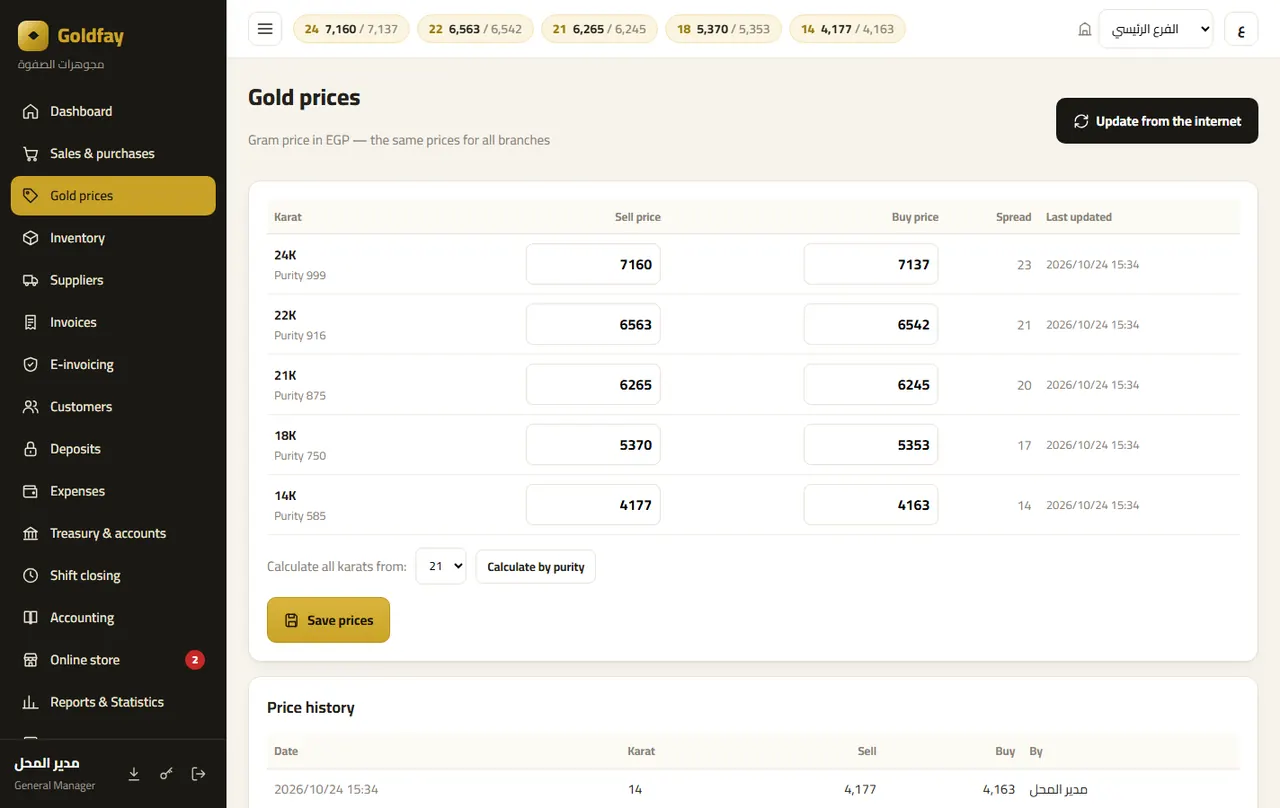
- One-click online update for Egypt, Saudi Arabia and the UAE in the local currency.
- Type one karat and the rest are derived by purity, or edit each karat separately.
- A price history with time and user.
Inventory: balances
Each karat's balance per branch = barcoded pieces + loose weight, at weighted-average cost.
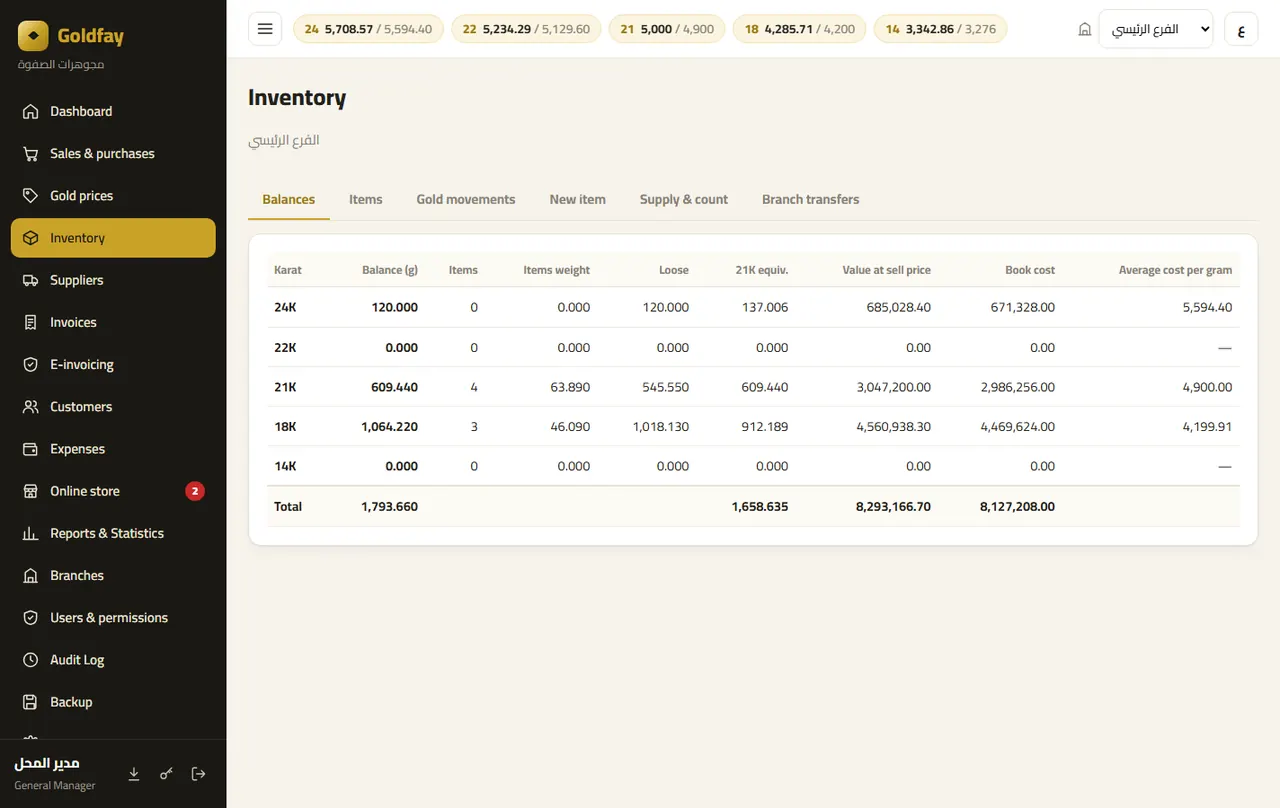
- Weight, 21K equivalent, value at the sell price and cost.
- Two columns, “pieces” and “loose”, so you know where every gram is.
Inventory: pieces
All barcoded pieces with their status: in stock, reserved for a store order, sold, removed.
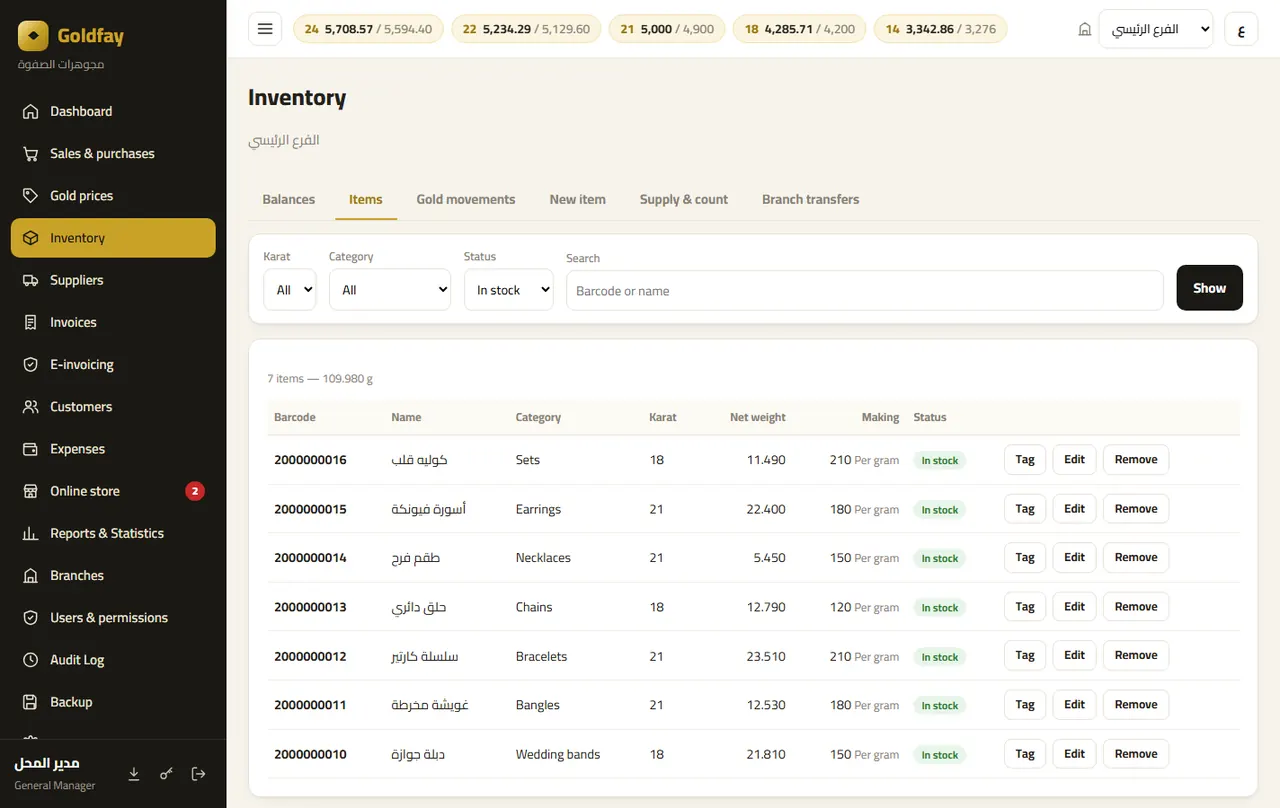
- Search by barcode or name and filter by karat, category and status.
- Edit a piece, print its tag, or remove it (damaged/for melting) with a ledger entry.
Inventory: new piece
Add a barcoded piece (generated automatically if left empty) and print its tag after saving.
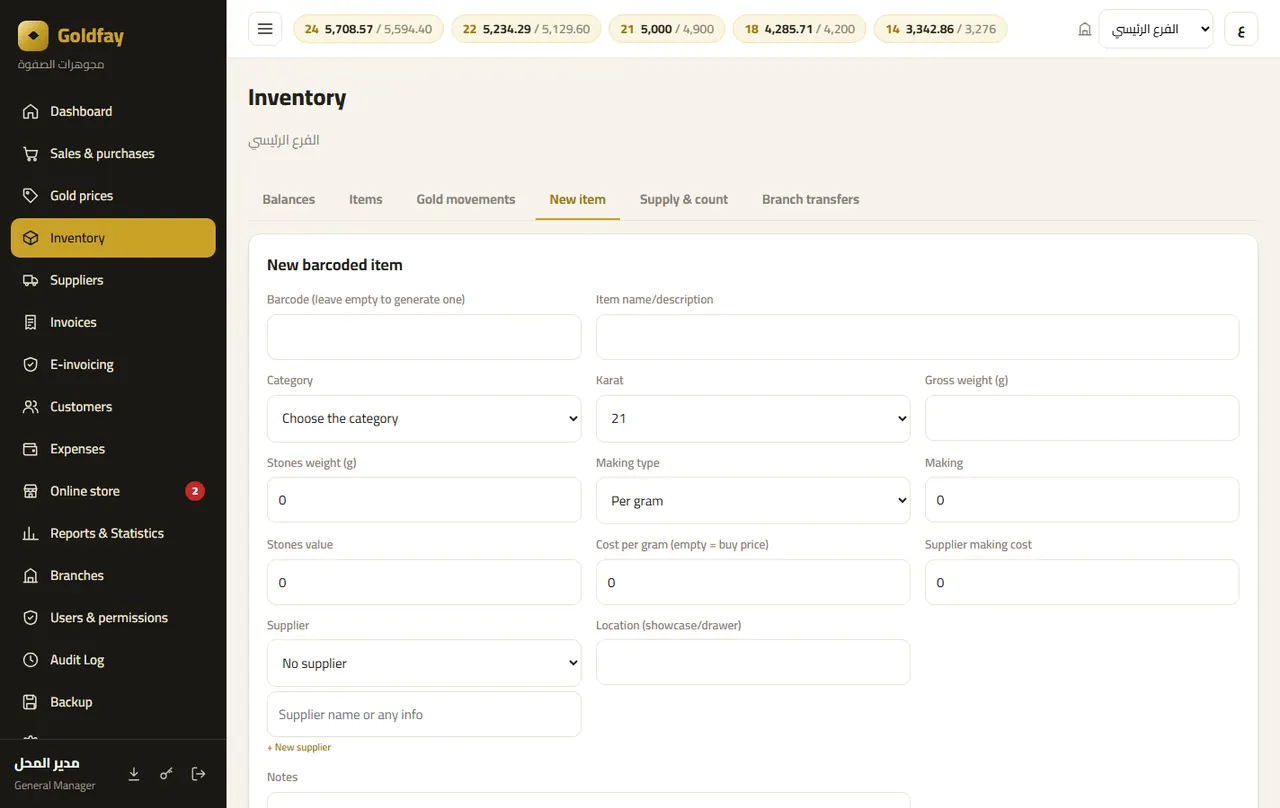
- The category fills the default making charge; net weight = gross − stones.
- Cost per gram and the supplier's making cost (for profit reports) — an empty cost per gram is saved at the buy price at that time.
- Supplier: choose it from the supplier list, or “Other” and type any name or info manually.
- Entry type: supply, opening balance, or “convert from existing loose weight” — the piece gets a barcode without increasing stock.
- An “Online store” part: show the piece in the store and upload its photos from the same screen (on a phone you can take them directly).
Inventory: supply & stock count
Loose-weight movements and counting with the scale.
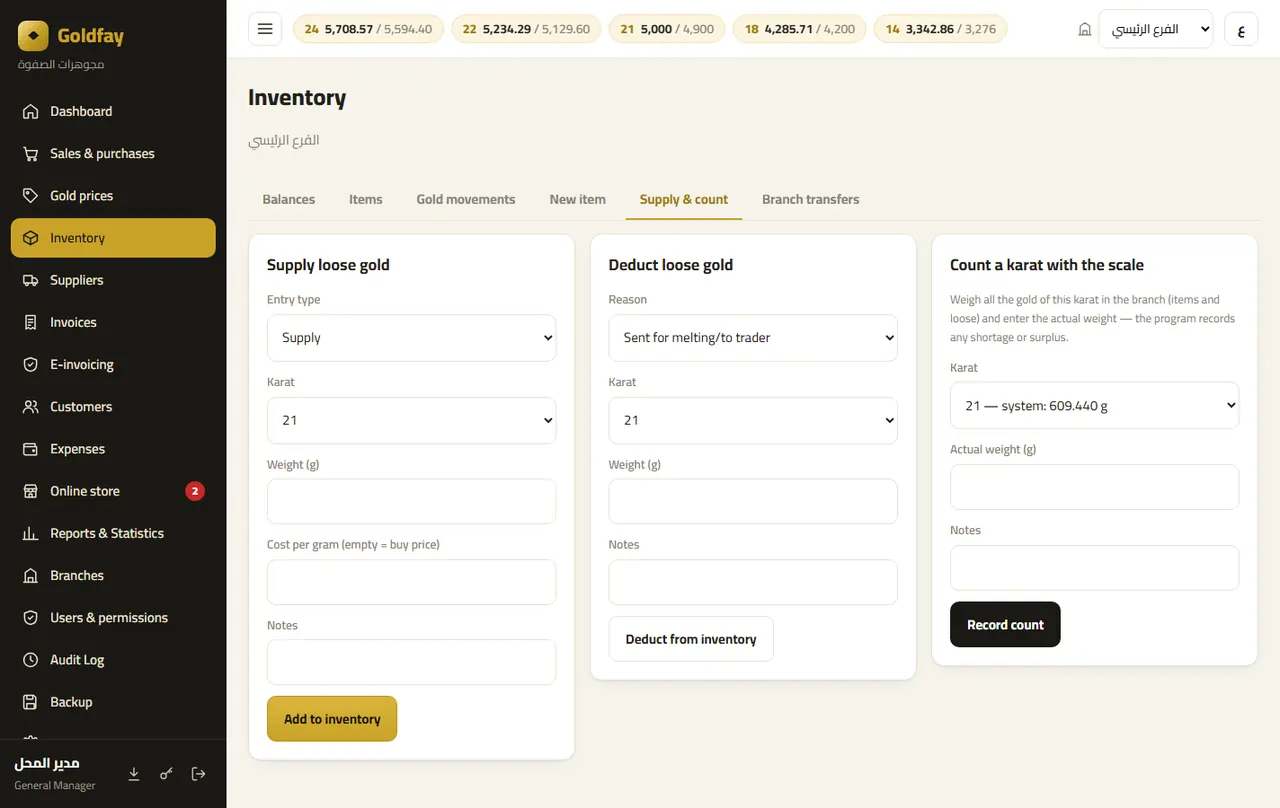
- Supply loose gold or an opening balance with its cost.
- Deduct weight (sent for melting/to the trader, or an adjustment).
- Stock count: weigh all gold of a karat and type the actual weight; the system records the shortage or surplus.
Transfers between branches
Move loose weight or a barcoded piece between branches with two ledger entries.
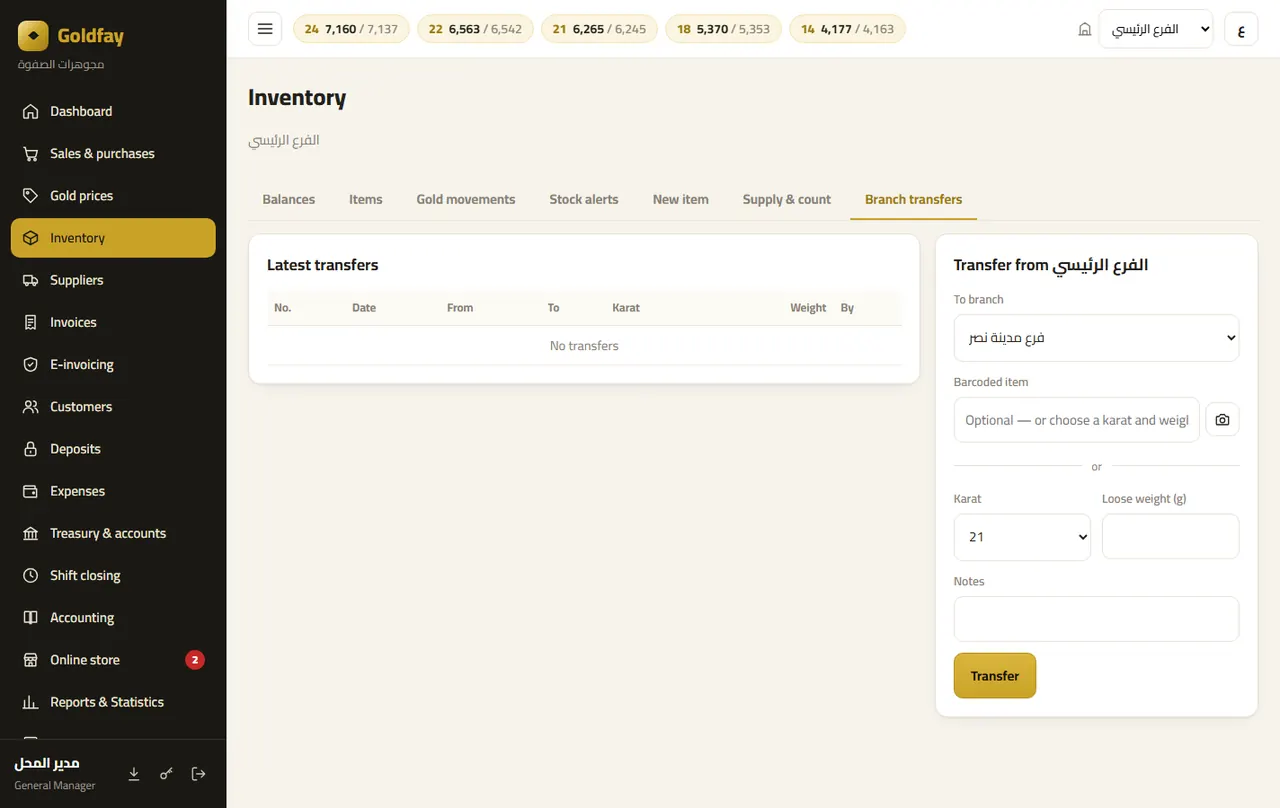
- Choose the sending and receiving branches and the karat and weight, or scan the piece barcode.
- A store order from one branch with a piece in another: transferred automatically on delivery.
Gold ledger
Every gram in or out: sale, purchase, supply, melt, count, transfer, void — a fixed ledger that cannot be edited.

Suppliers
The workshops and traders you buy from: each supplier's details, the number of pieces bought from them, their weight and the last purchase.
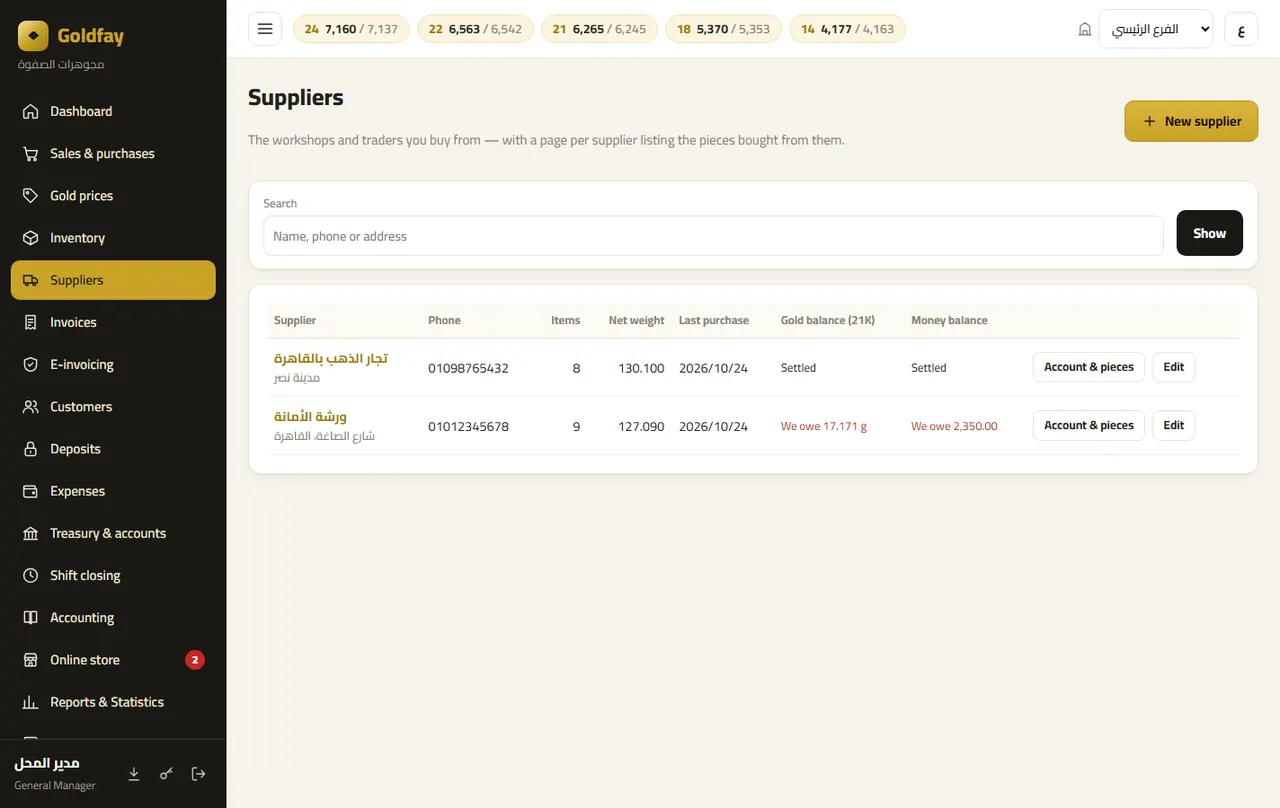
- New supplier: name, phone, address and notes (types of work, pricing method, delivery times...).
- Names typed manually on pieces appear below — register any of them as a supplier and its pieces are linked automatically.
- Deactivate a supplier (hidden from the list, history kept); only suppliers without pieces can be deleted.
Supplier page
Every piece bought from this supplier: date, weight, cost, branch and status (in stock, sold, removed).

- Totals for pieces, net weight and cost, with a breakdown by karat.
- Sold pieces link to their sales invoice.
- Costs are shown only to users with the “View inventory cost” permission.
Invoices
Search all invoices by date, number, customer and seller, for the current branch or all branches.
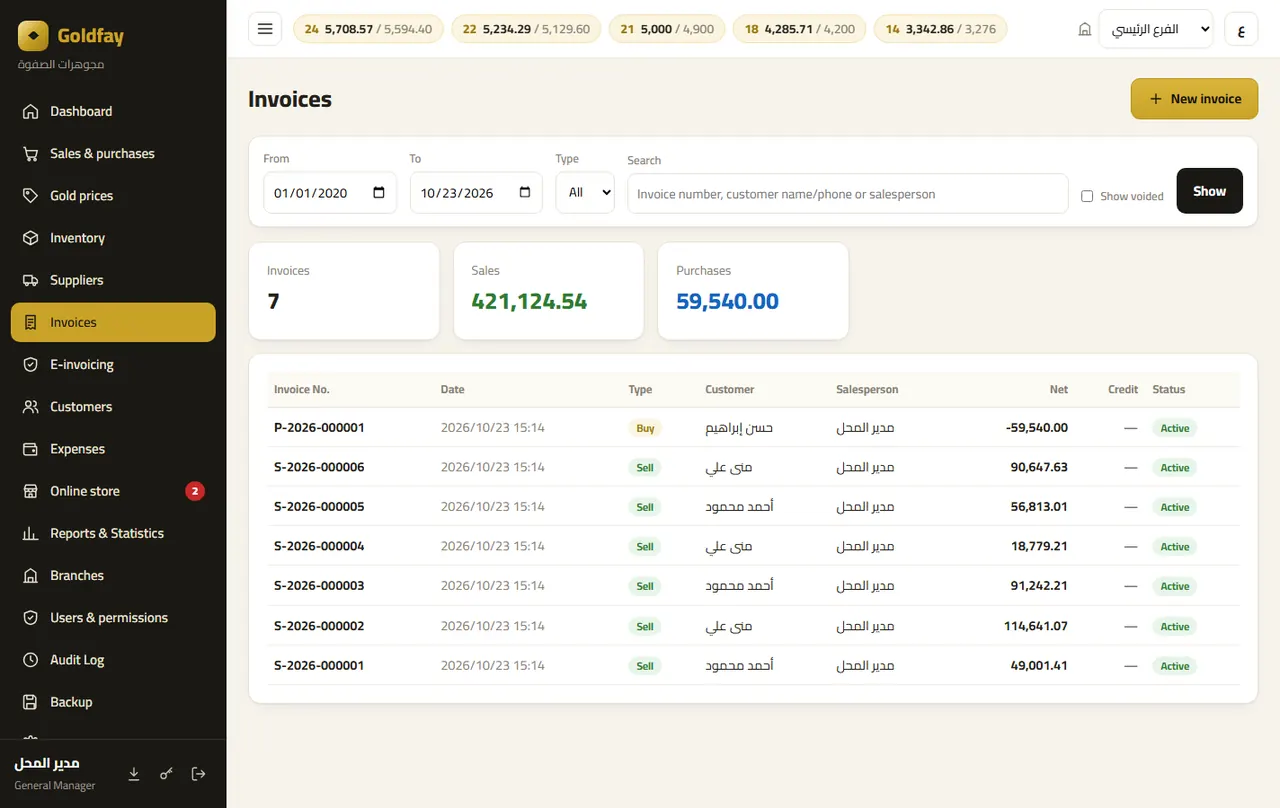
- Sales and purchase totals for the period.
- Show voided invoices too (voiding uses reversing entries — nothing is deleted).
Invoice page
The invoice ready to print as an 80 mm receipt or A4, with its barcode and a QR code if it was sent to the tax authority.

- Void the invoice with a reason (pieces and weight go back to stock).
- An “E-invoice” panel: document status, “Send now”, or “Send to the tax portal” for an older invoice.
- Scrap purchase: “Sales invoice for the same customer” in one click.
E-invoicing
Direct integration with the Egyptian Tax Authority (e-receipt) and ZATCA Fatoora in Saudi Arabia.
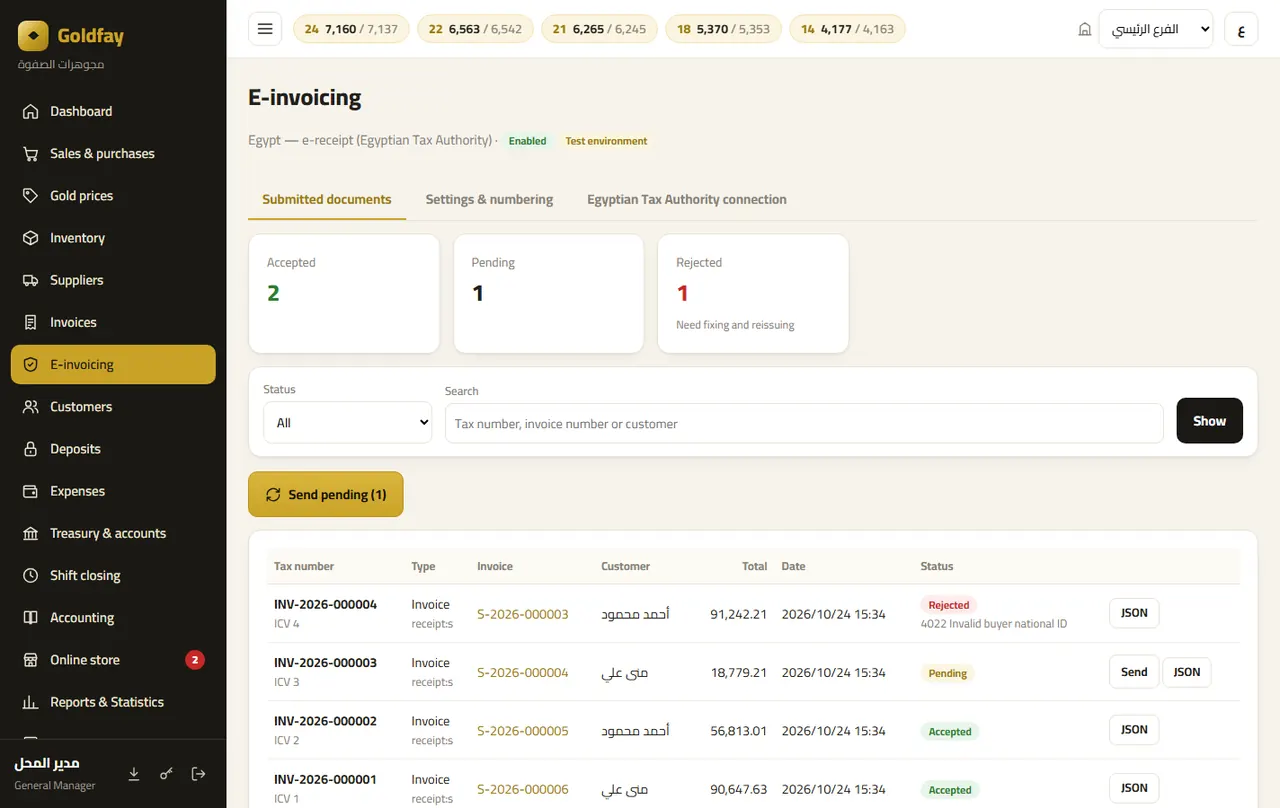
- “Submitted documents”: every document with its status (accepted, pending, rejected and why), and sending the pending ones.
- Download a document exactly as sent (XML for Saudi Arabia, JSON for Egypt).
- Documents are never deleted: voiding issues a credit note; rejected ones are reissued with a new number.
E-invoicing: settings & numbering
You control what gets sent and how it is numbered.

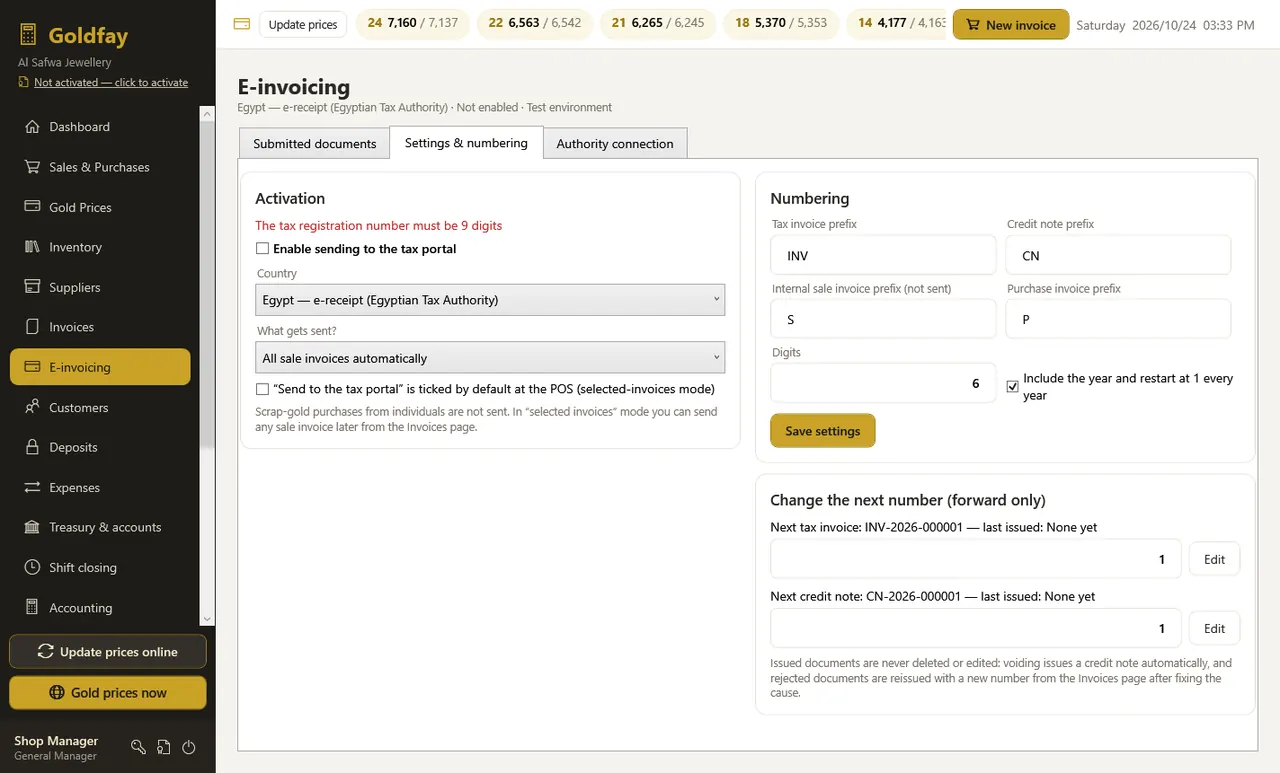
- Enable it, choose the country, and “all invoices” or “selected invoices only”.
- Separate prefixes for tax invoices (INV-), credit notes (CN-) and internal invoices (S-), the number of digits, and the year in the number.
- Change the next number forward only — no number ever repeats.
- The “Connection” tab: for Saudi Arabia the business details, certificate request and OTP (checks run automatically); for Egypt the POS details and item codes.
Customers
All customers with their phones and credit balance, and a statement per customer.

- Collect credit with a payment method.
- Tax details for companies: tax number and national address (for Saudi standard invoices).
Expenses
Shop expenses by category with a monthly budget per category.

- Add an expense with date, category and payment method.
- Included in the profit & loss and daily closing reports.
Online store: overview
A store in your shop's name: pieces with photos priced live from the gold rate + making charge, and an order becomes a sales invoice in one click.
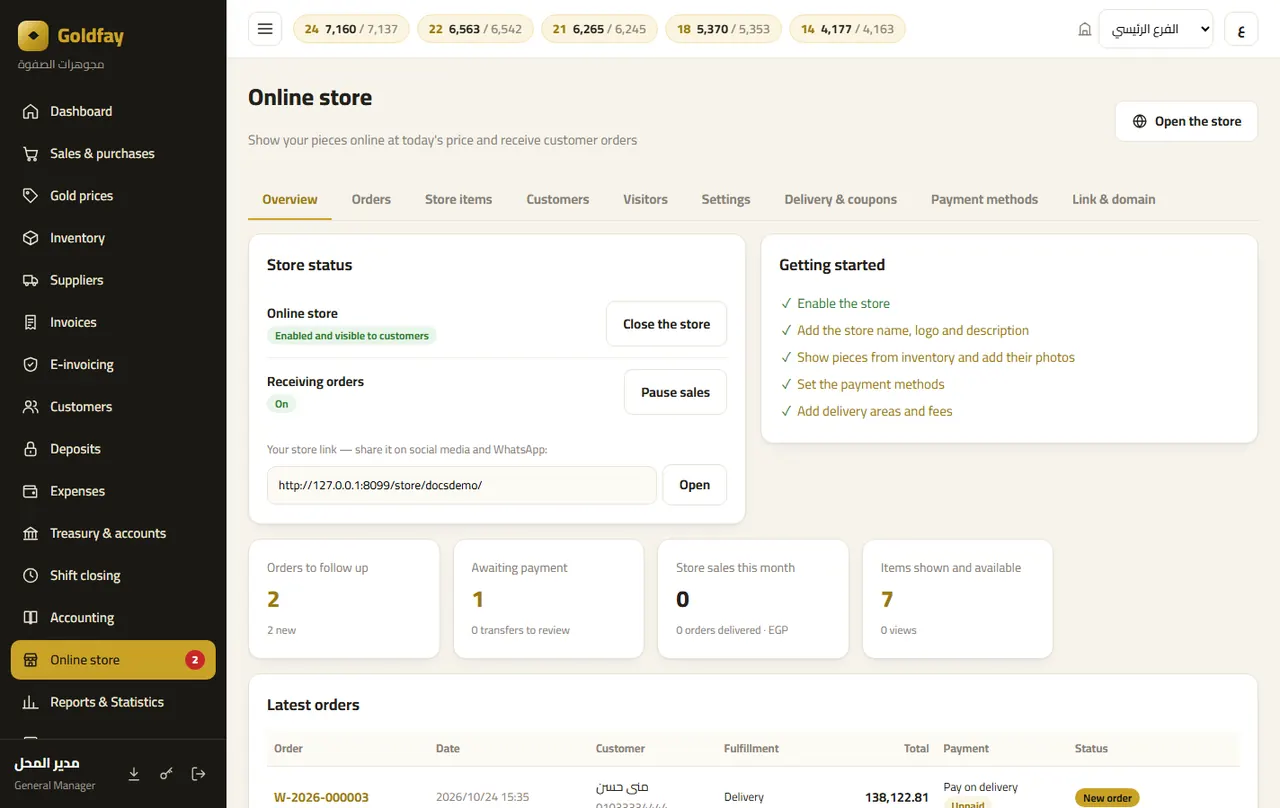
- Setup steps, the store link, and order and view counts.
- Open/close the store, and connect your own domain.
Store: products
All inventory pieces — choose which ones appear in the store.

- “Show” one piece or all selected ones, and “Hide”.
- “Photos & description” for each piece even before it is shown, and ★ for homepage picks.
Store: product page
The piece name and description in Arabic and English, its photos (up to 10), and size.
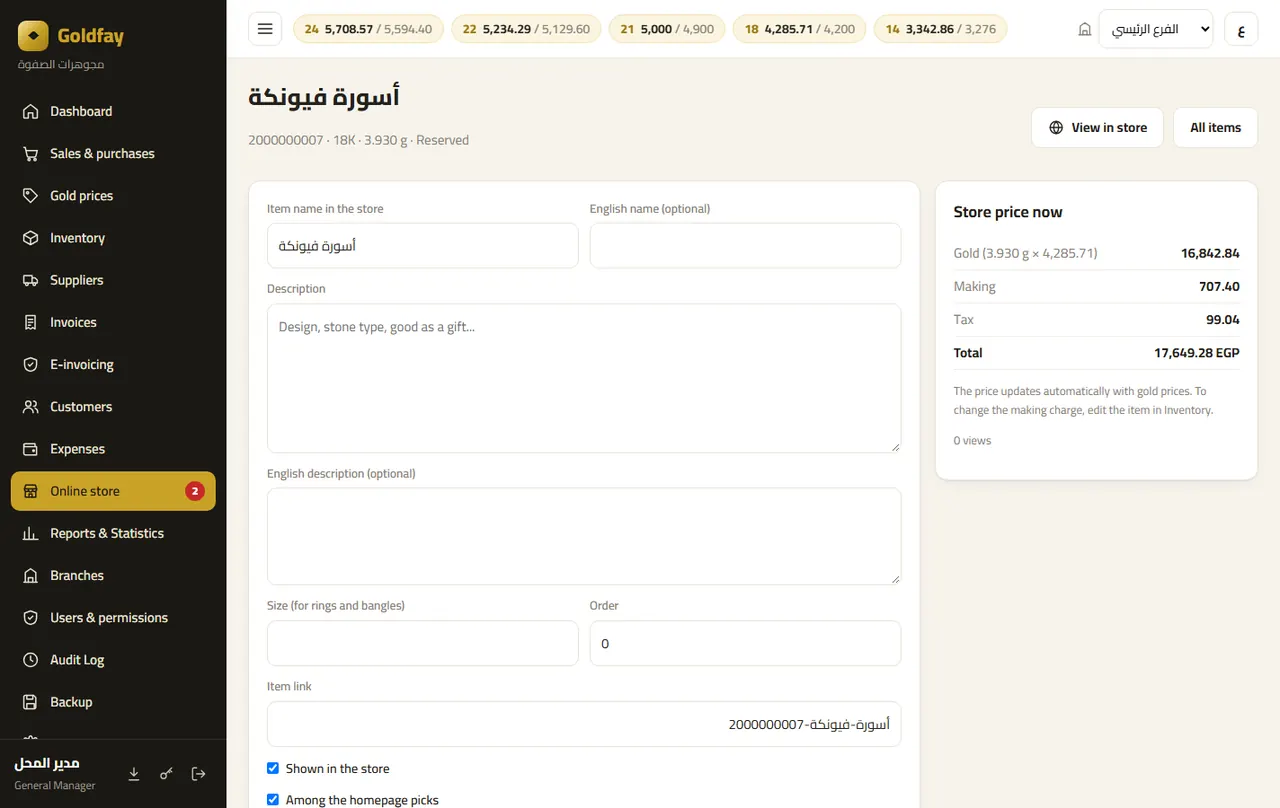
- The current store price in detail: gold, making charge, stones, hallmark fee and tax.
- Photos are resized automatically, and you can choose the main photo.
Store: orders
Customer orders by status: awaiting payment, new, confirmed and being prepared, ready (for pickup or out for delivery), delivered, cancelled.
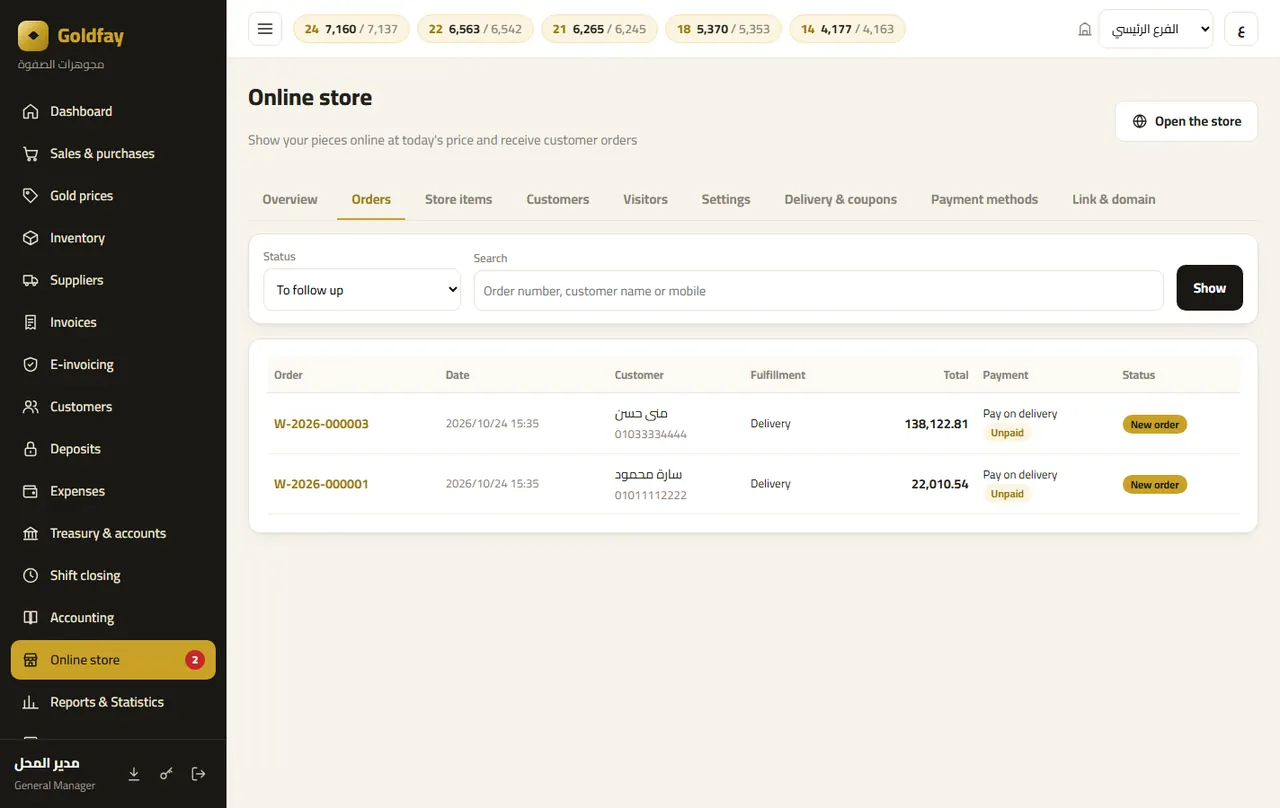
- Pieces are reserved from stock automatically until delivery or cancellation.
- A new-orders counter appears in the menu.
Store: order page
Order and customer details, the payment log, and the next-step buttons.
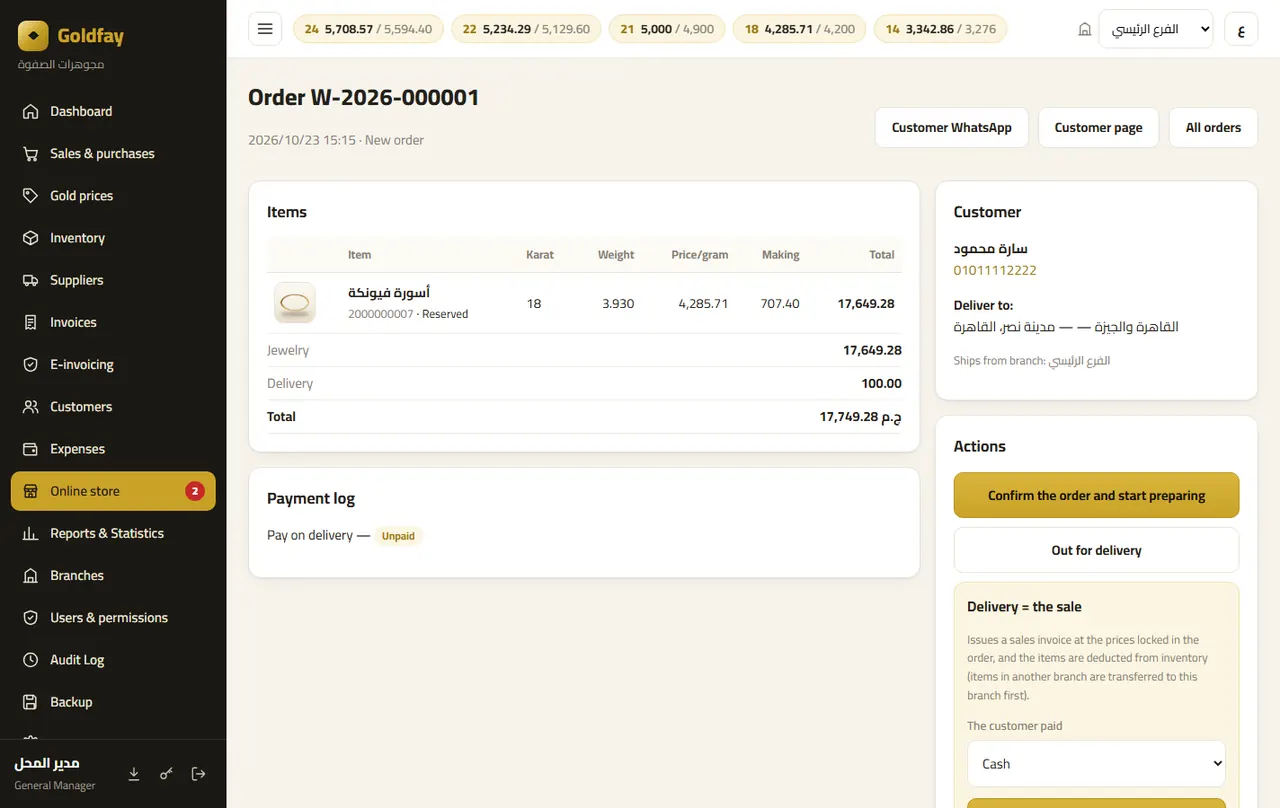
- Delivery = the sale: issues a sales invoice at the prices locked in the order.
- WhatsApp the customer in one click, and confirm manual transfers.
Store: payments
The payment methods customers can choose.
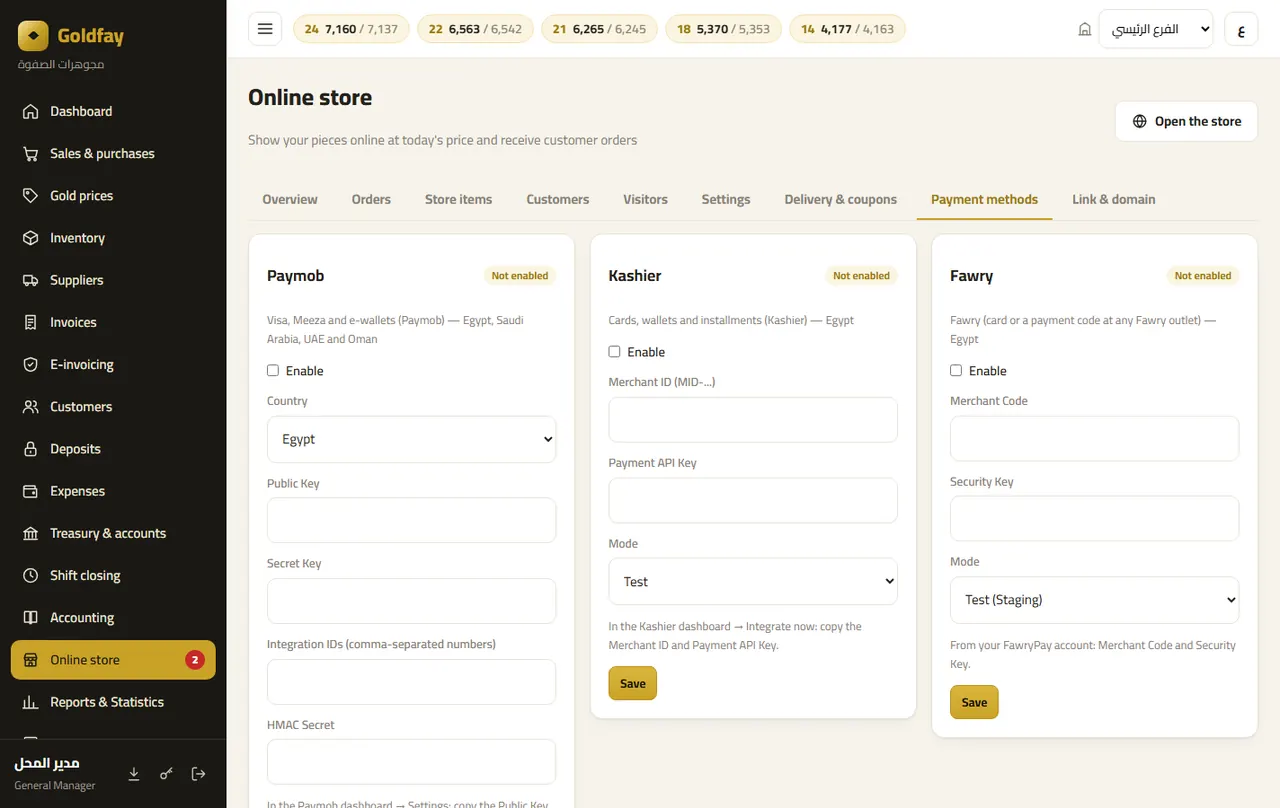
- Pay on delivery or at the branch (the default — compliant with hand-to-hand rules).
- Prepayment: Paymob, Kashier, Fawry, MyFatoorah, PayTabs, Tap, Moyasar, PayPal, and manual transfer.
- Money goes straight to the merchant's account, verified with the gateway's own server.
Store: settings
The store's look, details and policies.
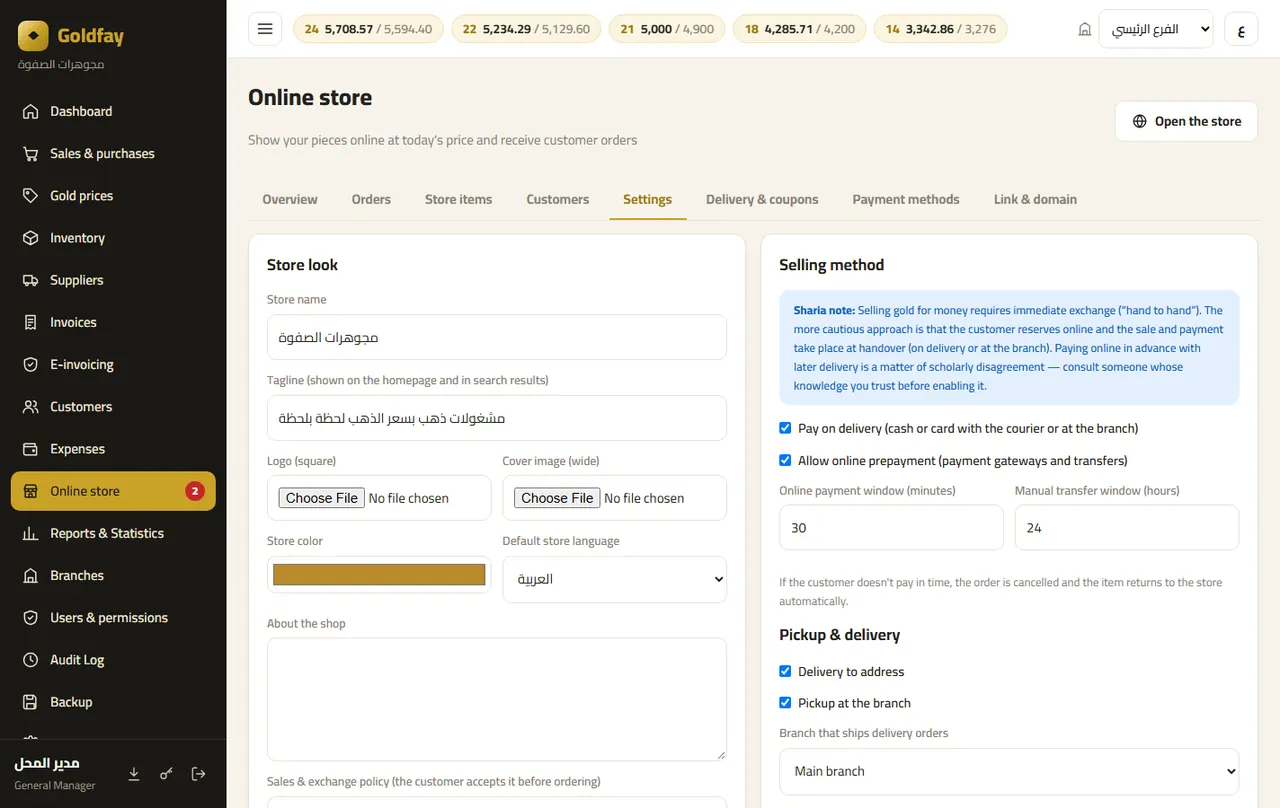
- Name, logo, tagline and colour, in Arabic and English.
- Delivery by zones and fees, branch pickup, and free delivery above an amount.
- Discount coupons on making charges, and paid name engraving.
The store for your customers
What your customers see: today's gram prices at the top and pieces at live prices.

- Customer accounts, a wishlist and step-by-step order tracking.
- Arabic and English, and mobile-friendly.
Reports & statistics
Sales, inventory and profit reports for any period and branch, with Excel export.
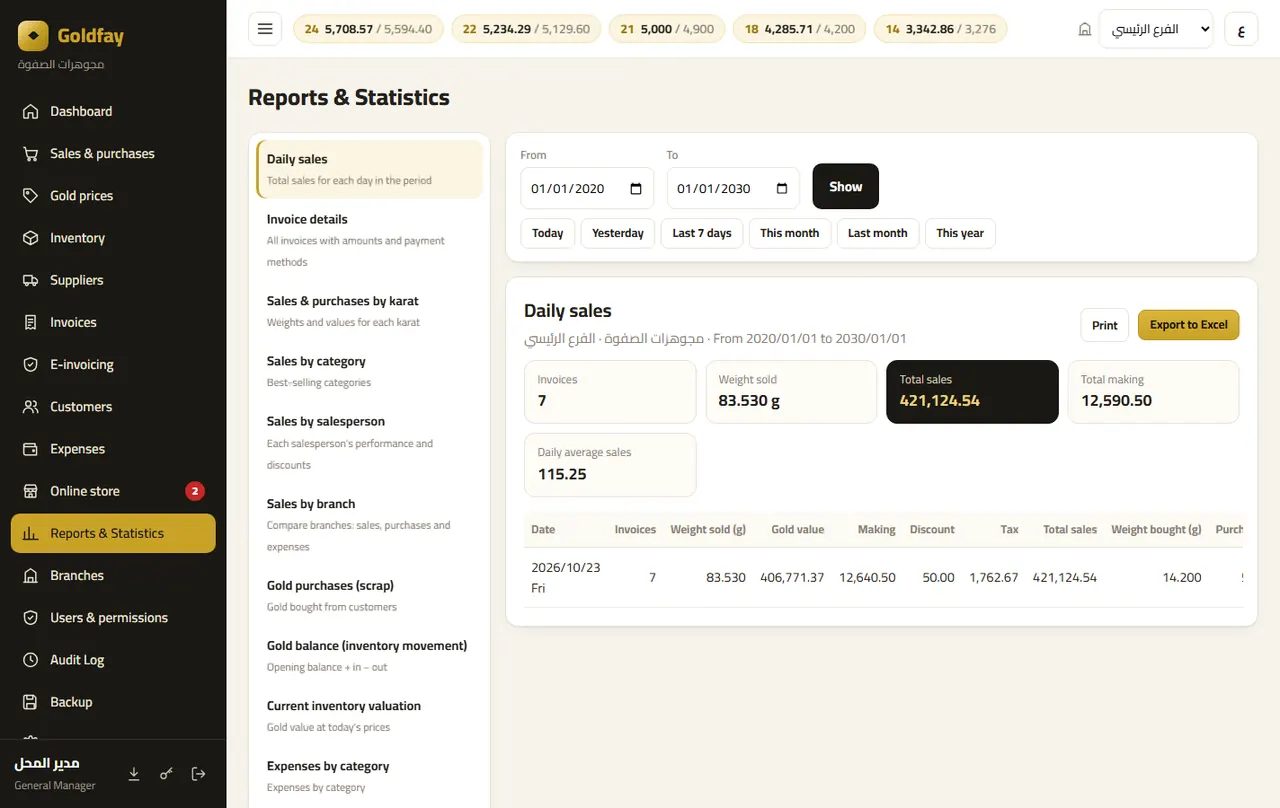
- Daily sales, invoice details, and by karat, category and seller.
- Profit & loss: gold price gains separate from net making charges and expenses.
- Gold balance, stock valuation at today's prices, and daily cash closing.
Branches
Your branches with addresses and phones (printed on each branch's invoices).
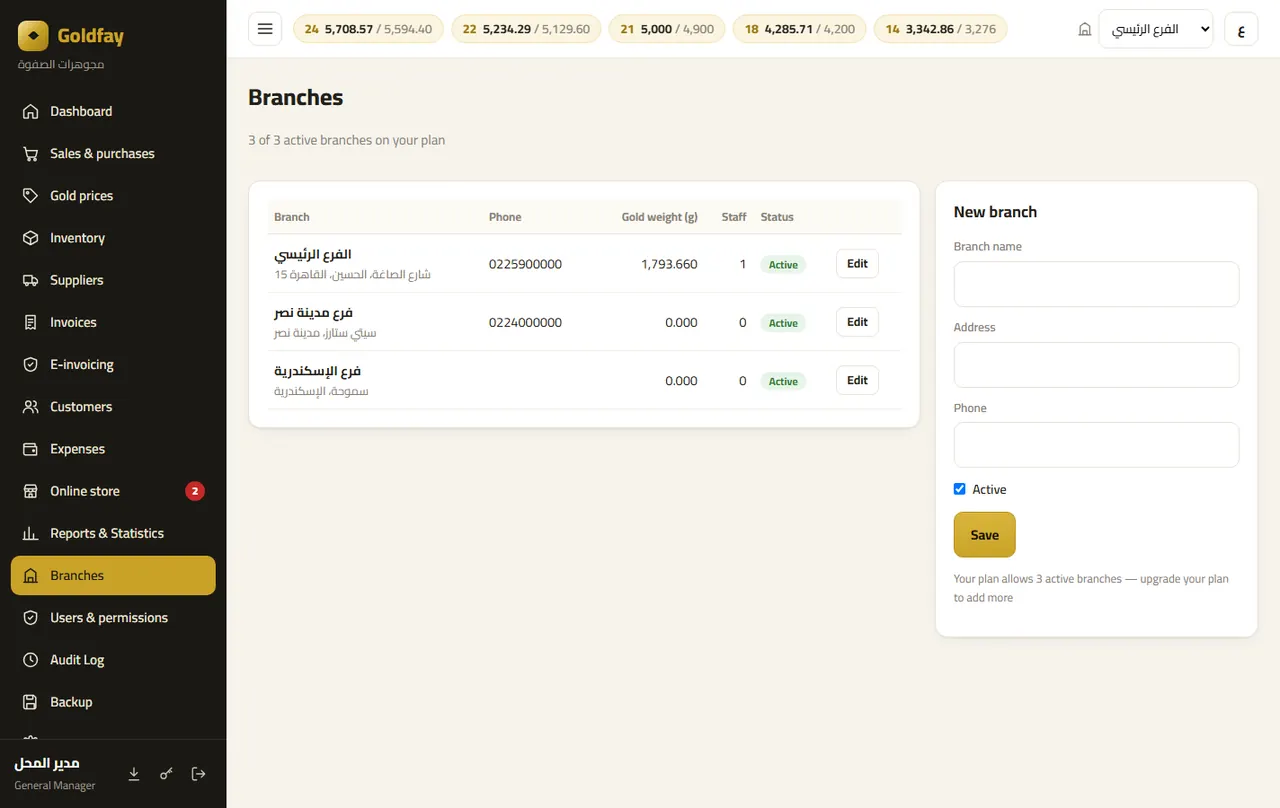
- Deactivate a branch without deleting its data.
- The number of branches depends on your plan.
Users & permissions
Each employee with their own account and a role with precise permissions per screen and action.

- Ready roles or your own, with a maximum discount per role.
- Branches they can open: “All branches”, one branch or several — the employee sees and works on their branches only and switches between them at the top of the screen (“All my branches”).
- Deactivate an account without deleting it.
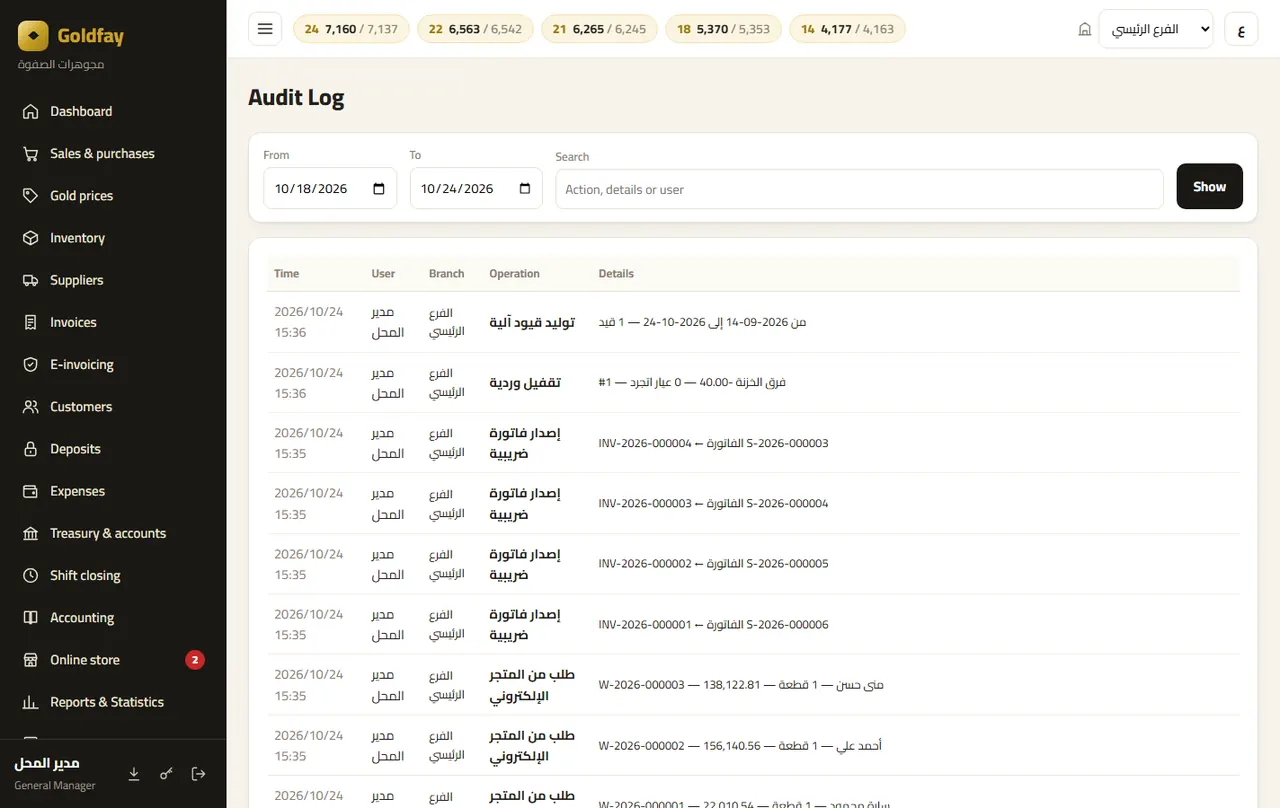
Audit log
Every important action with time, user and branch: invoices, voids, prices, stock, settings.
Backup
Your data is on the server with a nightly backup on a separate server.
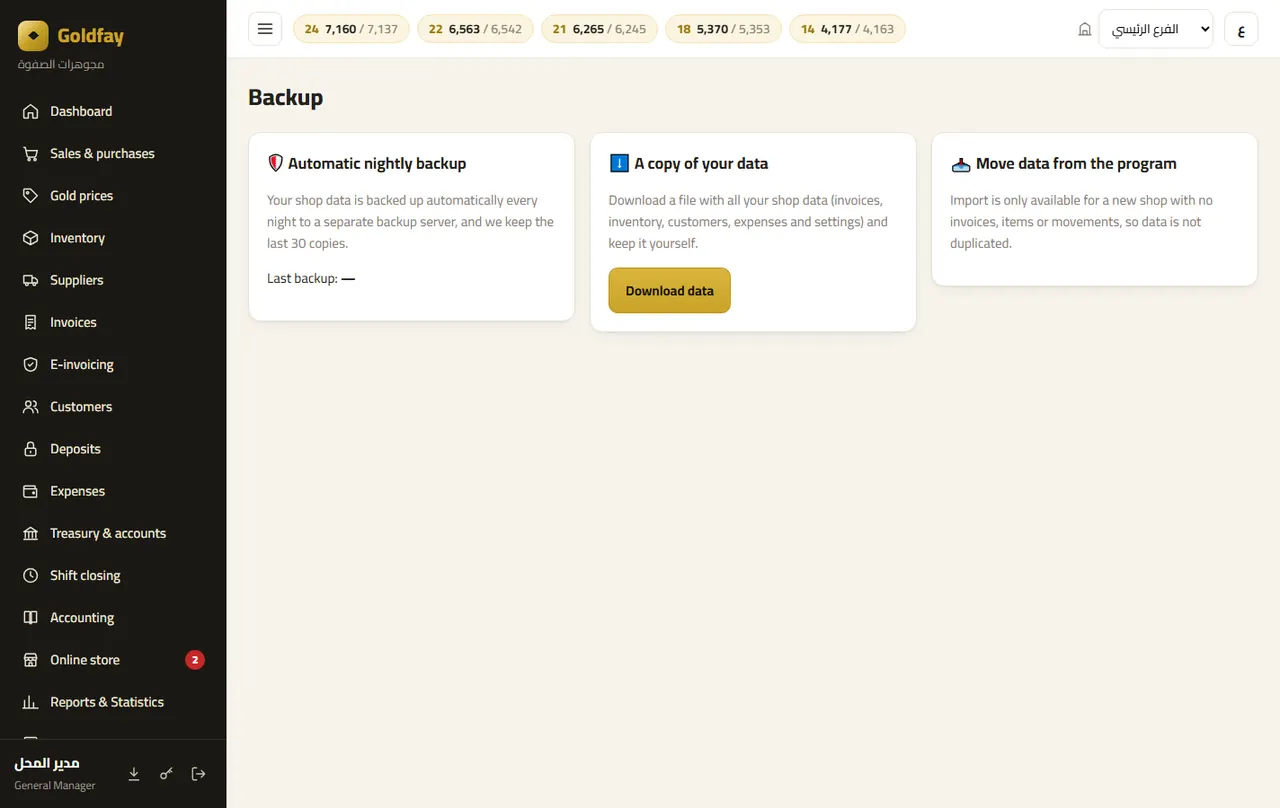
- Download a copy of your shop's data at any time.
- Import your data from the desktop program with its backup file (into a new, empty shop).
Settings
All shop settings in one place.
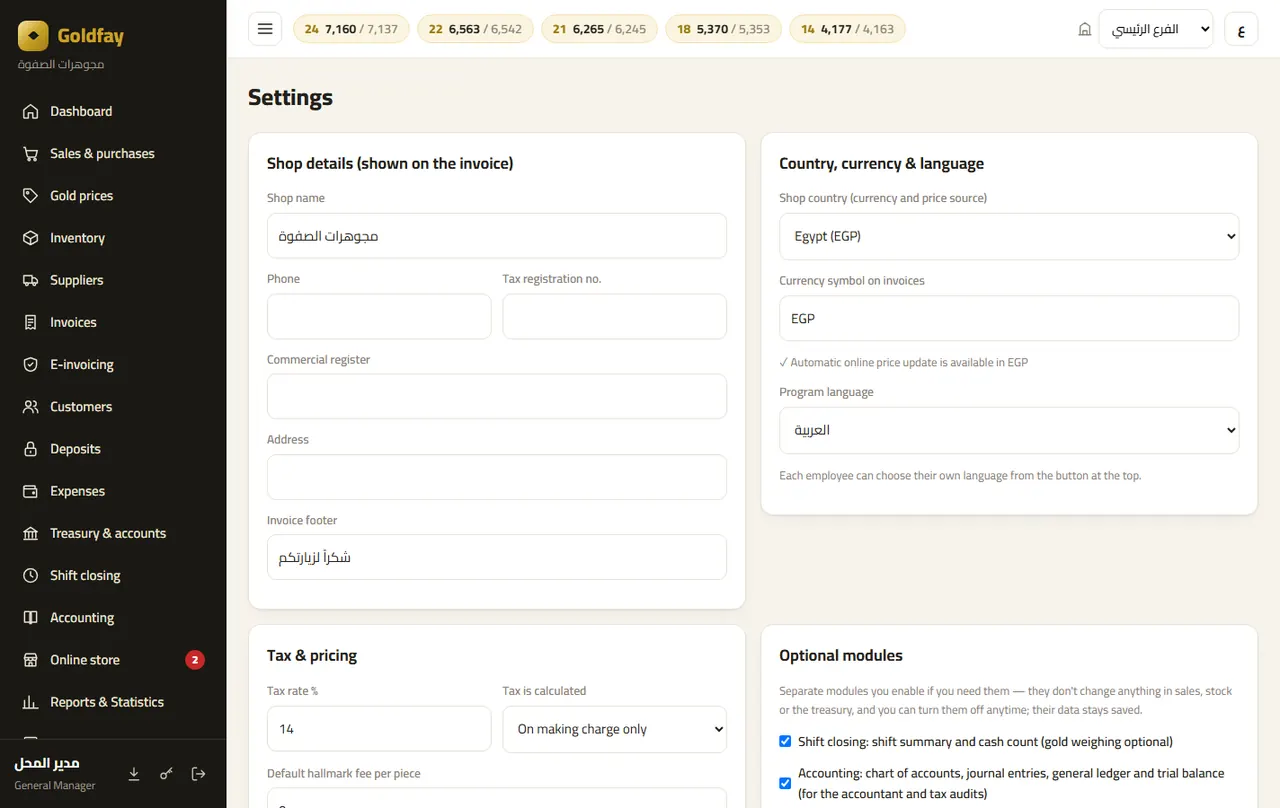
- Shop details, tax number, commercial register and invoice footer.
- Country, currency and language.
- The tax rate and what it applies to: making charge, making and hallmark, the total, or none.
- Default hallmark fee, requiring the seller's ID when buying, and allowing credit.
- Print size, scale speed, karats and their purity, and categories with their making charges.
Need help?
Message us on WhatsApp and we will help you set up step by step.
Chat on WhatsApp PricingA Windows program that runs on the shop computer without internet, with a lifetime license or subscription, and all your data on your own computer.
Get started in 6 steps
- 1Download the program
On the website click “Download free”, extract the zip and run Goldfay.exe (Windows 10 or 11). If “Windows protected your PC” appears, click More info → Run anyway.
- 2First-run setup
Shop name, country (currency, tax and price source), the general manager account (name, username and password), and today's 21K price — the rest is calculated automatically.
- 3Try 14 days or activate
The trial has every feature. To activate: buy on the website, the key appears in your account, then in the program click the license line under the shop name → type the key → “Activate now”.
- 4Set prices and settings
“Gold prices” (online update for Egypt, Saudi Arabia and the UAE), and “Settings”: shop details, tax, printer and receipt size, and the scale port.
- 5Staff and stock
Add employees with their permissions, enter the opening stock and barcoded pieces, and print their tags.
- 6Start selling and keep backups
From “Sales & purchases”. Backups are made automatically every day and on exit — copy one to a USB stick or Google Drive from time to time.
Sign-in and license
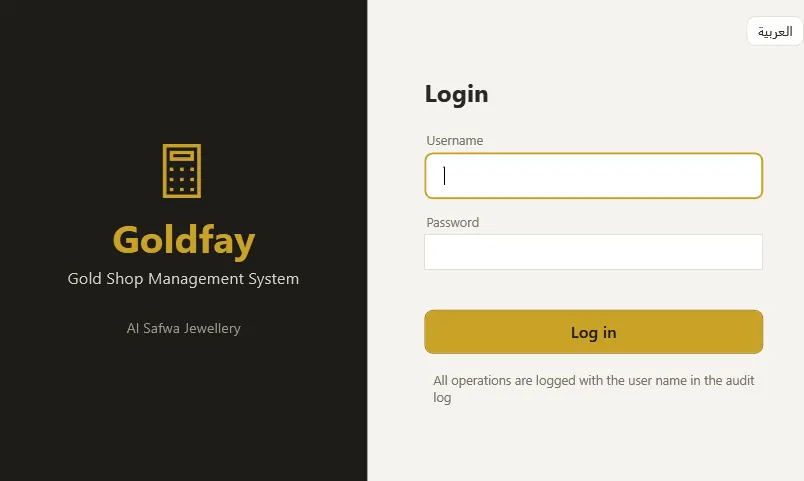
Each employee signs in with a username and password, and the license status is always shown under the shop name.
- The license window: status and expiry, “Check now”, and “Deactivate on this PC” to move it to another computer.
- The program checks the license online once a day and works offline for up to 30 days.
- Change your password from the key icon at the bottom.
Dashboard
All your gold at a glance, and today's activity.
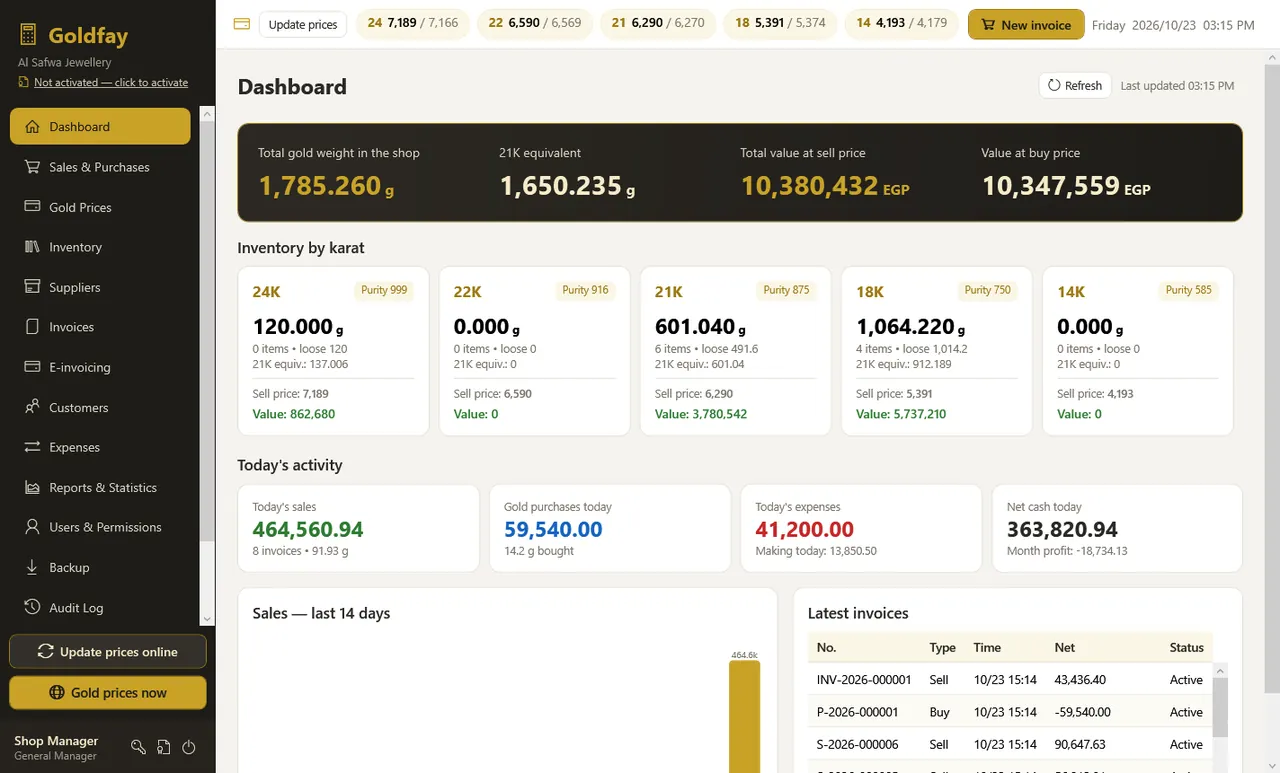
- Total weight, 21K equivalent and value at sell and buy prices.
- A card per karat, and a 14-day sales chart.
- Smart alerts: missing prices, negative balances, overdue backup.
Sales & purchases
A complete invoice in seconds: a sale or a scrap purchase — each on its own.
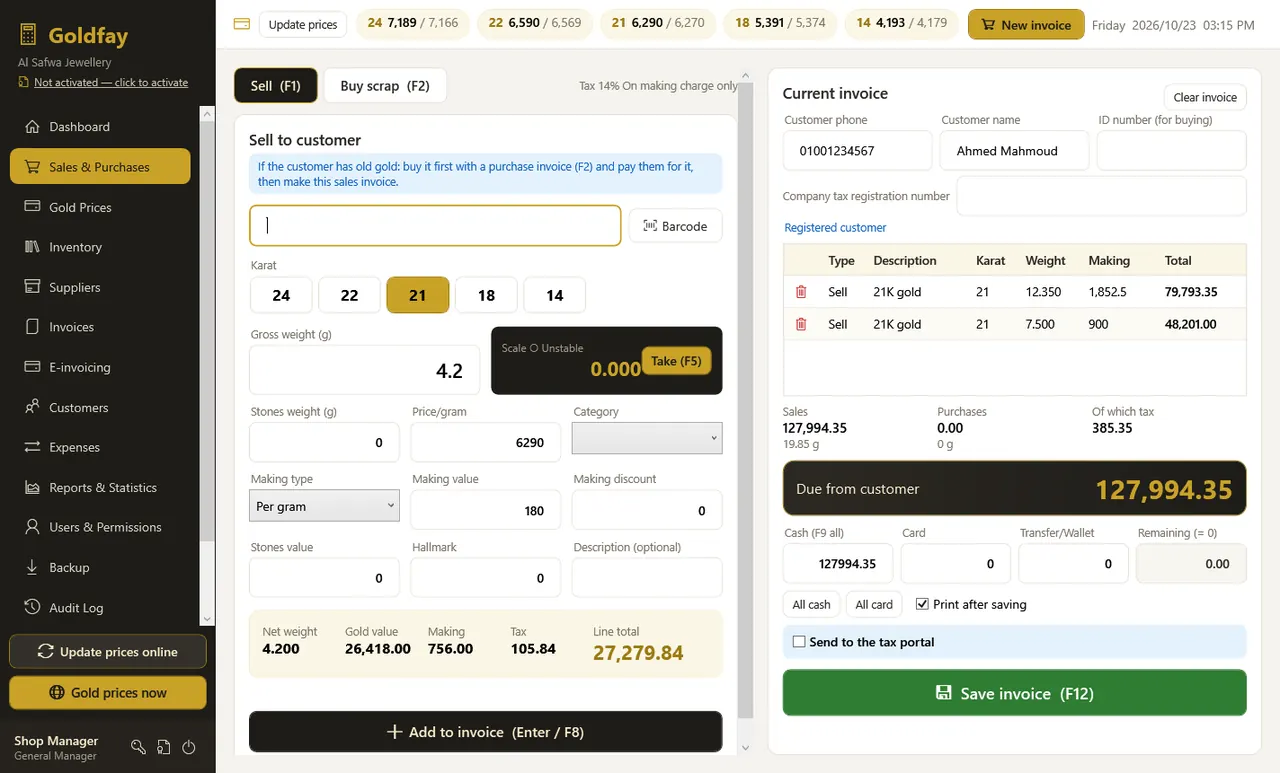
- Barcode reader, or sell by weight: karat, category, weight, making charge, stones and hallmark fee.
- Scale on a COM/USB port: the weight comes in live with a “stable” indicator.
- Live totals: gold value, making charge, discount, tax and total per line and for the invoice.
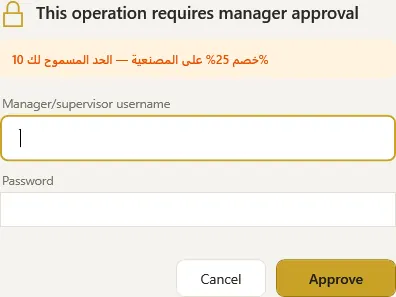
- A discount or price beyond the seller's limit = manager approval with their password.
- The company tax number, and a “Send to the tax portal” tick when e-invoicing is on.
- Shortcuts: F1 sale · F2 purchase · F5 take weight · F8 add · F12 save.
Manager approval
When a seller exceeds their discount, price or void permission, a manager approves with their name and password, recorded on the invoice and in the log.
Gold prices
Sell and buy prices per karat, with other karats derived by purity.
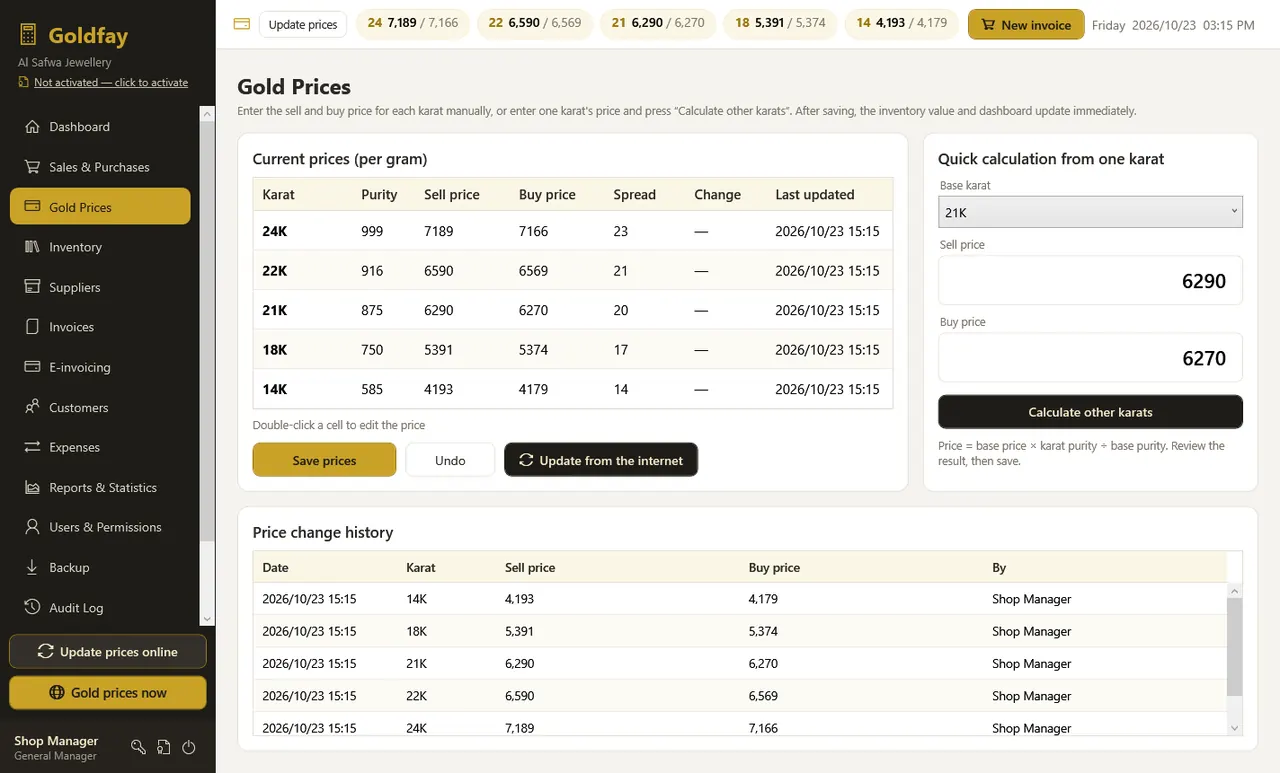
- “Update prices online” for Egypt, Saudi Arabia and the UAE after your confirmation.
- “Gold prices now” opens the price page in your browser.
- The price ticker is shown at the top of every screen.
Inventory
Balance per karat, barcoded pieces, and the gold ledger.
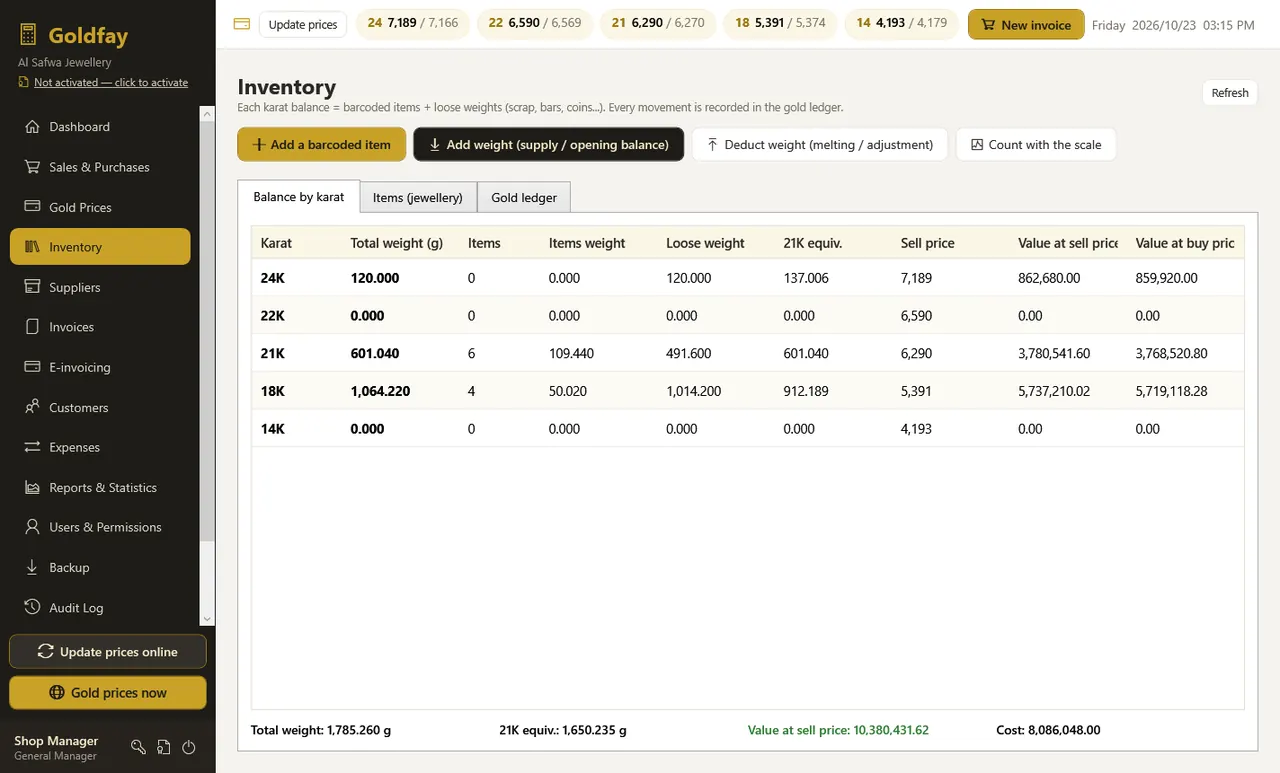
- Supply loose weight or an opening balance with its cost, and deductions for melting or adjustments.
- A fixed ledger for every gram in or out.
- A barcode tag for each piece on the tag printer.
Adding a piece
A barcoded piece with gross weight, stones, making charge, cost, supplier and showcase location.
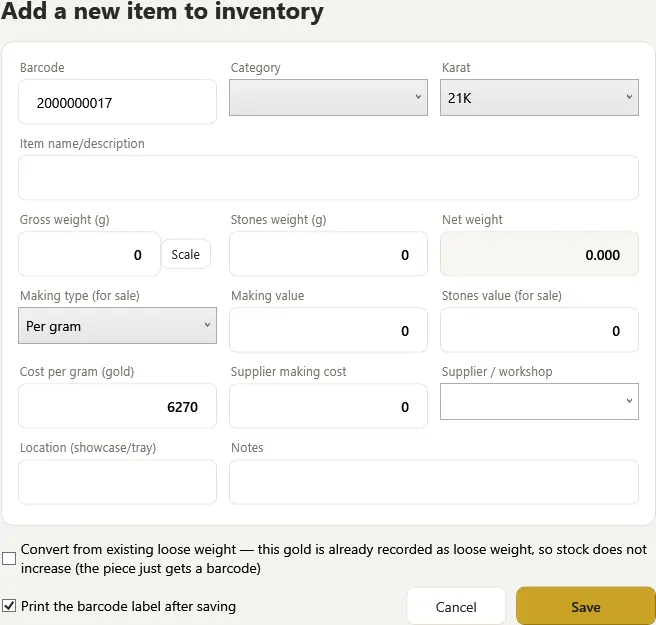
- Take the weight from the scale with the “Scale” button.
- Supplier: pick it from the list or type any name in the same box.
- A “Convert from existing loose weight” tick when the gold is already recorded as loose weight (stock does not increase).
- Print the tag after saving.
Suppliers
The workshops and traders you buy from — select a supplier to see every piece bought from them below.
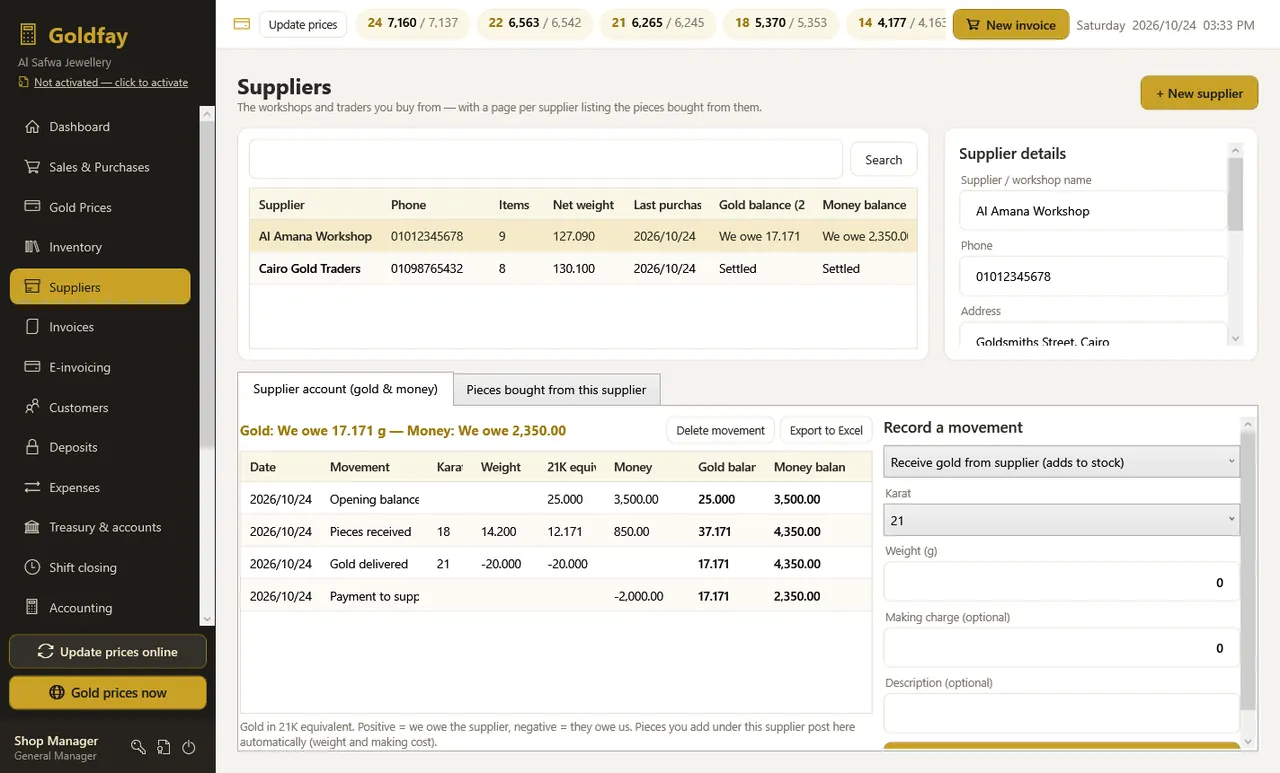
- Supplier details: name, phone, address and notes, and “Active” so it appears in the piece window.
- Pieces with date, barcode, weight, cost and status, plus total pieces, weight and cost.
- Names typed manually on pieces: click a name → save, and the pieces are linked to the supplier automatically.
- Suppliers move with your data to the online edition through the backup file.
Stock count with the scale
Weigh all gold of a karat (pieces and loose) and type the actual weight — the program records the shortage or surplus as an entry.

Invoices
All invoices by date, number and customer, with the invoice details beside them.

- Reprint, and void with reversing entries after a manager's approval.
- A “Tax number” column and e-invoice status, and “Send to the tax portal” for an older invoice.
Printed invoice
An 80 mm thermal receipt or an A4 invoice with each line's details (gold, making, tax) and the barcode — plus a QR code for e-invoices.
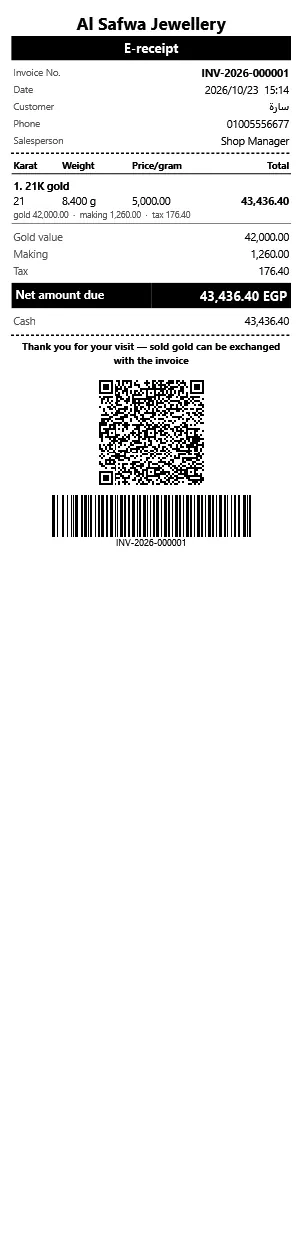
- Print directly to the default printer or choose a printer.
E-invoicing
The same integration as the online edition: Egypt and Saudi Arabia, with documents and their statuses.
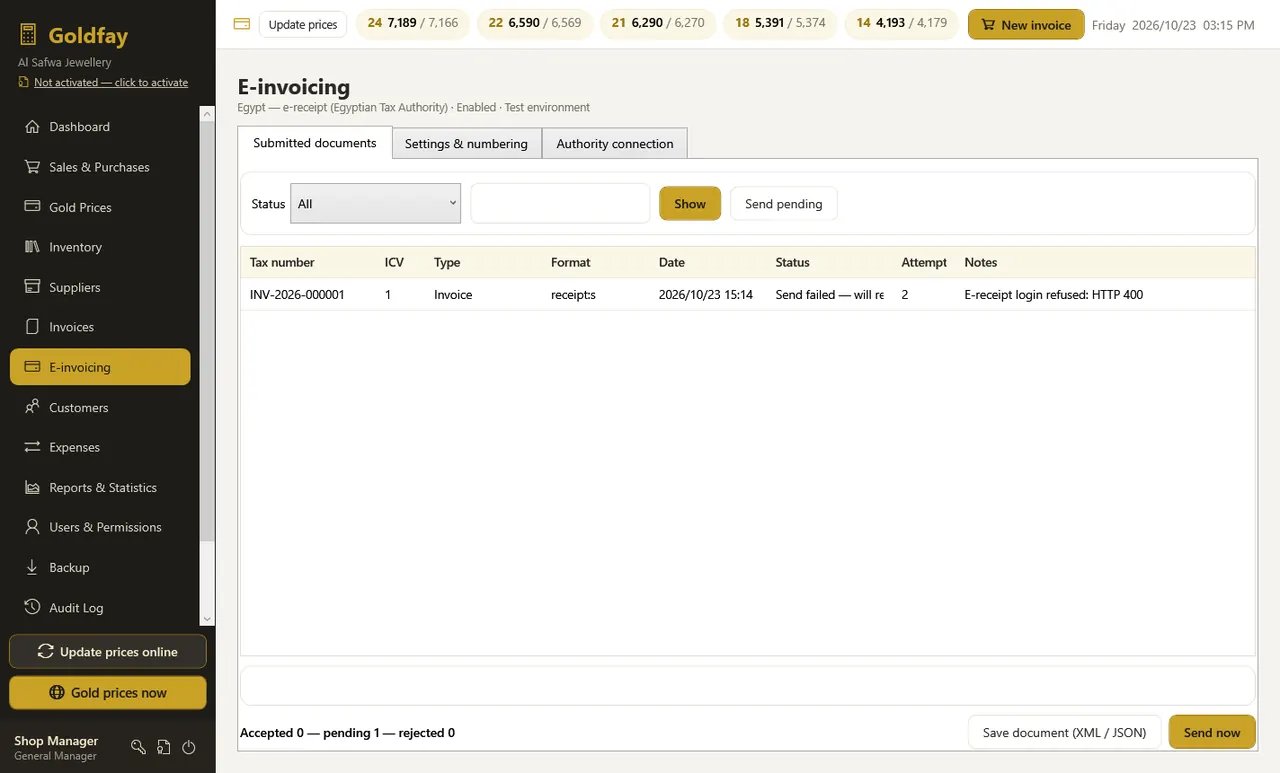
- The program sends automatically after a sale and retries every 10 minutes if the internet drops.
- Save the XML/JSON document, and “Send now”.
E-invoicing: settings & numbering
Enable it, choose the country, all or selected invoices, the prefixes, and changing the next number forward.
E-invoicing: connection
For Saudi Arabia: business details → certificate request → OTP. For Egypt: the POS and item codes, and company invoices (B2B) signed with the token.
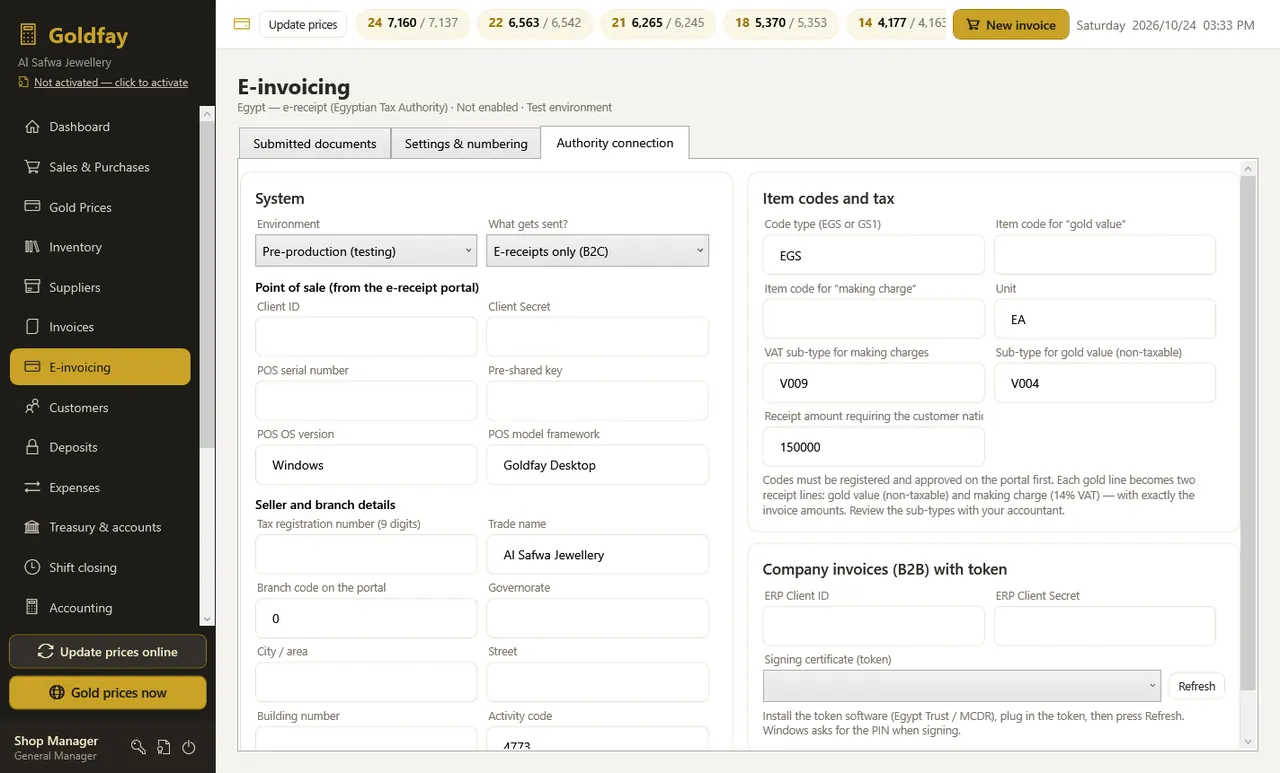
- The token (Egypt Trust / MCDR) appears under “Signing certificate” after installing its software; Windows asks for the PIN when signing.
- “Test login” and “Test token signing” before enabling.
Customers
Customer details, credit balance, statement and collections.
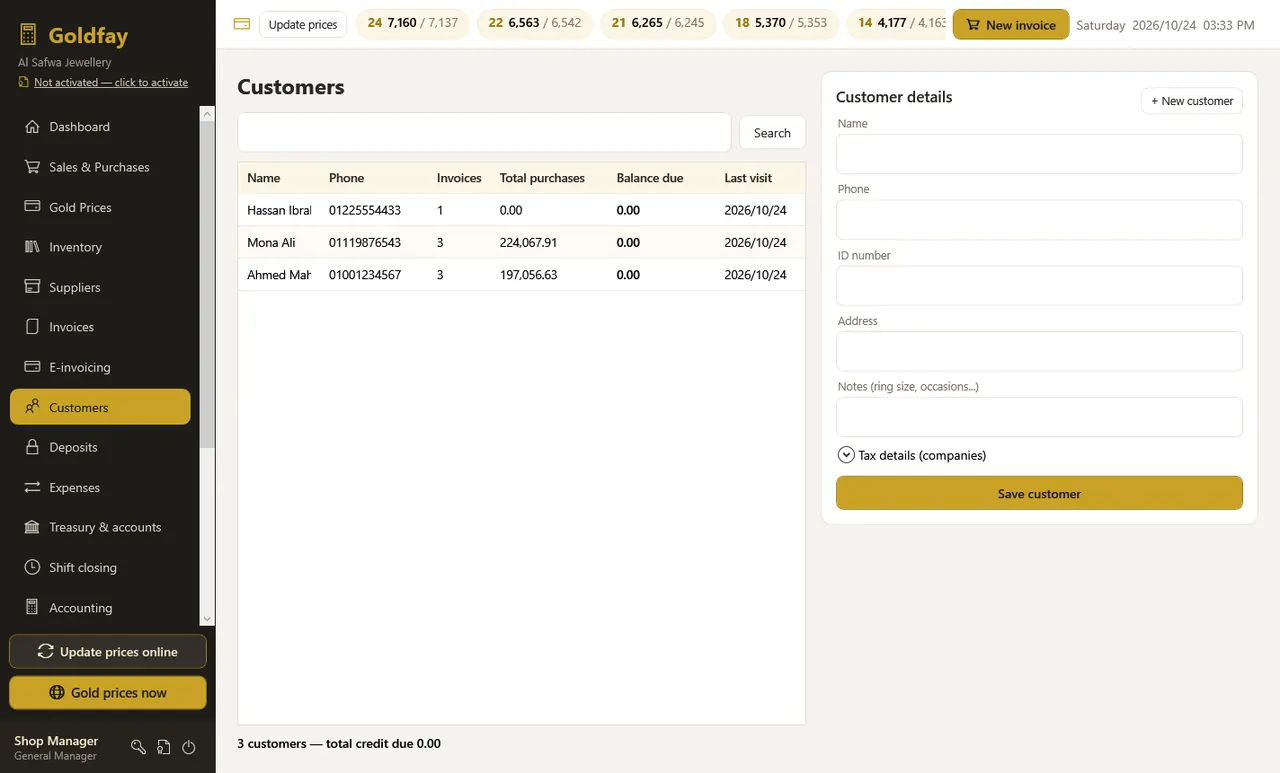
- Tax details for companies (tax number and national address).
- Customer notes (ring size, occasions).
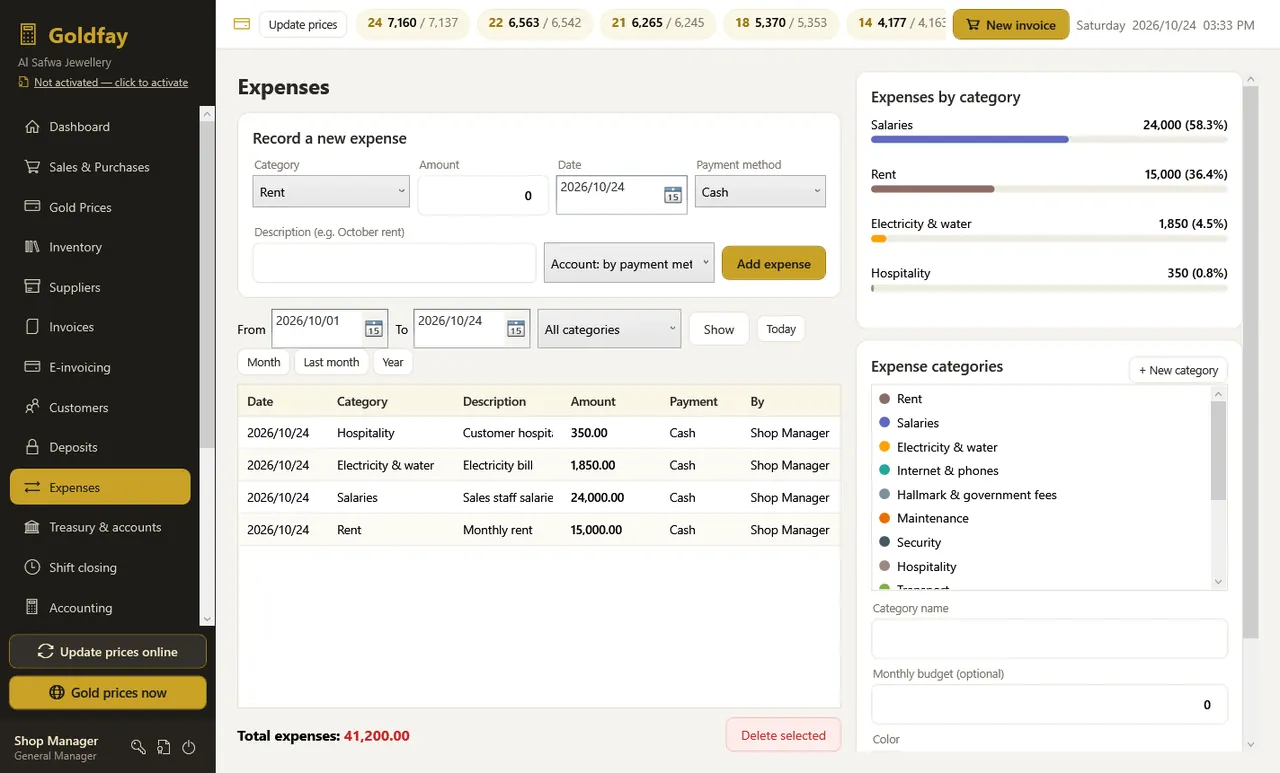
Expenses
Expenses by category with a monthly budget per category in its own colour.
Reports & statistics
13 reports for any period, with Excel export and PDF printing.

- Daily sales, invoice details, by karat, category and seller, and scrap purchases.
- Gold balance, stock valuation, expenses, and daily cash closing.
Profit & loss report
Earning from the work or from gold rising? The report separates gold price gains from net making charges and expenses, at weighted-average cost per karat.

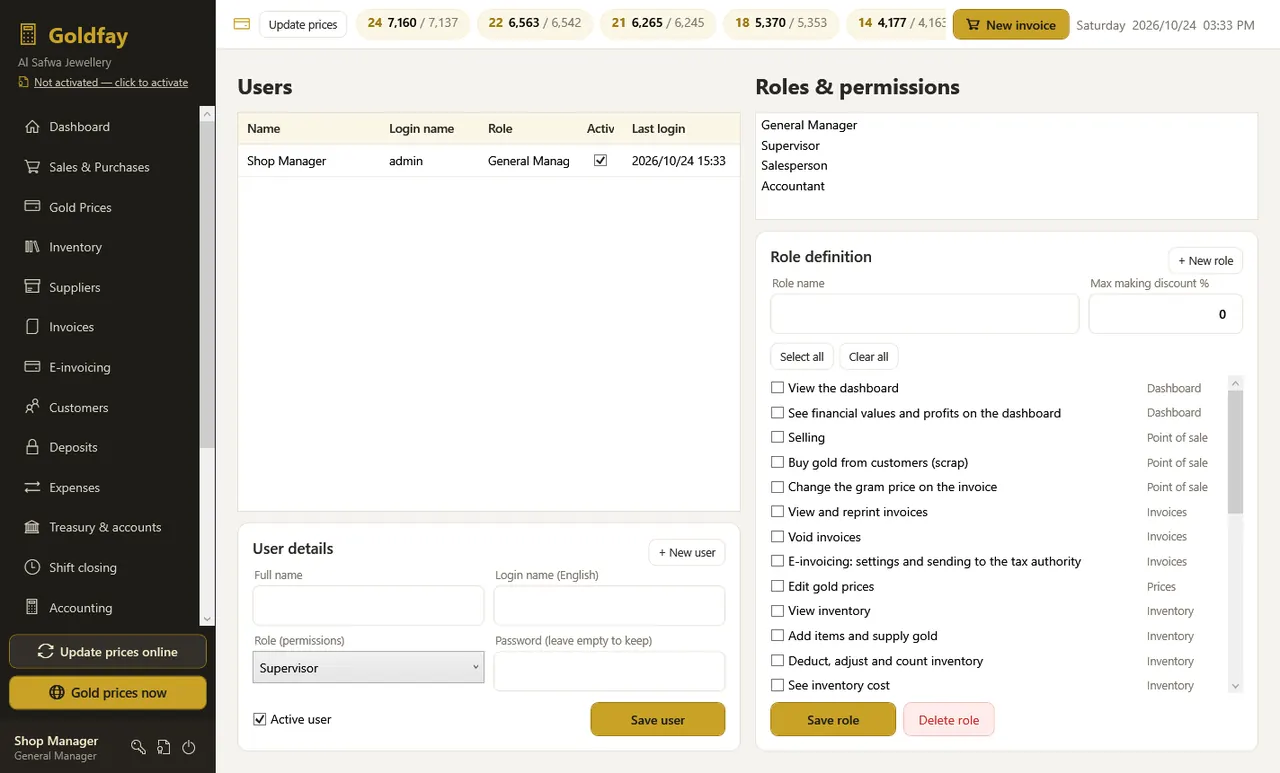
Users & permissions
Roles with precise permissions and a maximum discount per role, and an account per employee.
Backup
Your data in one safe file.
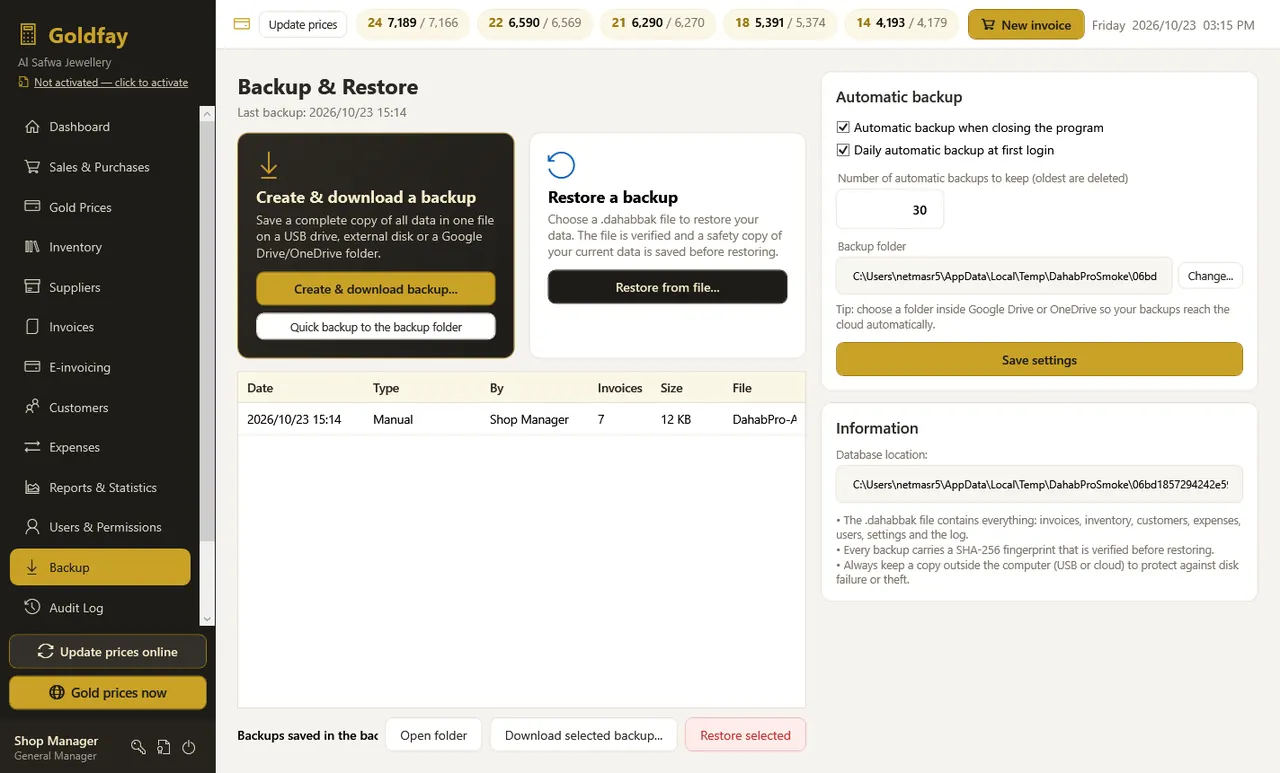
- Automatic backups daily and on exit, keeping the last 30 (adjustable).
- “Back up now and save” to a USB stick or a Google Drive folder.
- Restoring checks the file first (SHA-256 fingerprint) and takes a safety copy before it.
- The same file moves your data to the online edition.
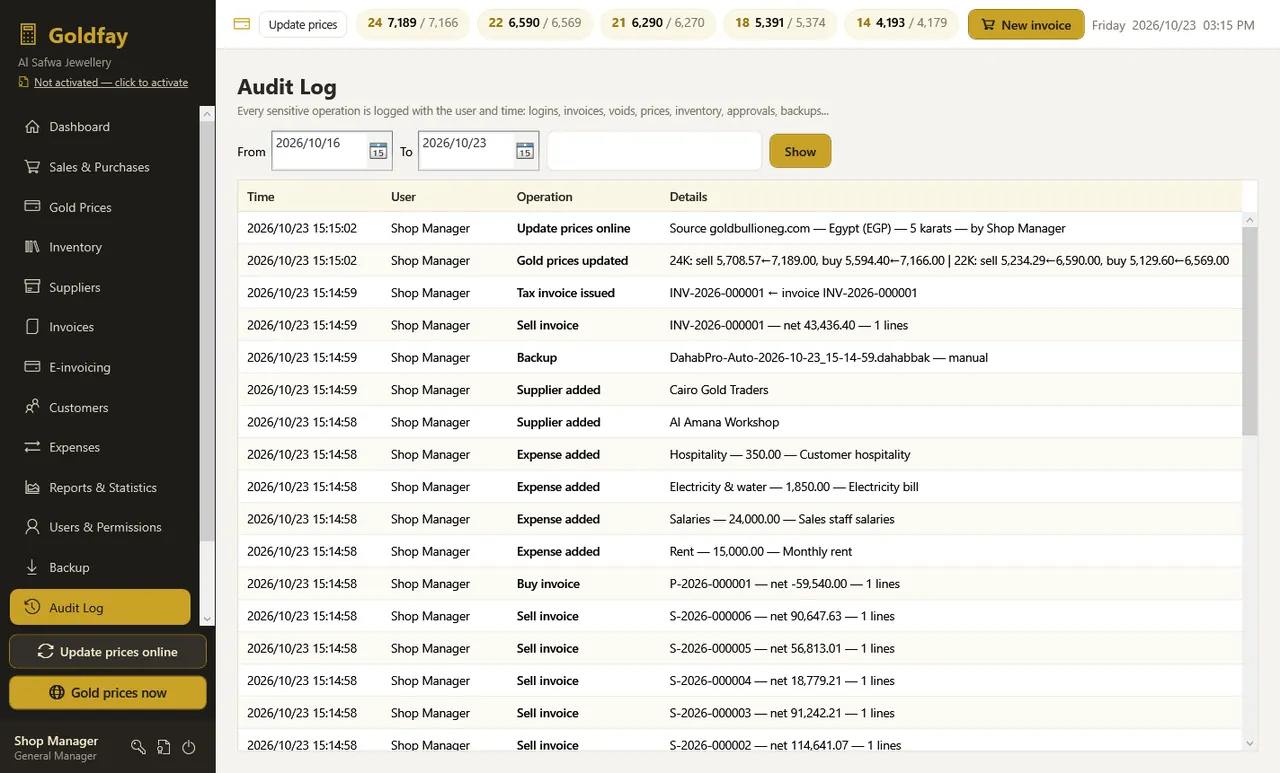
Audit log
Every important action with the user and time.
Settings
Shop details, country, currency and language, tax, printing, the scale, karats and categories, and the license.

- Tax on: making charge, making and hallmark, the total, or none — with a suggested rate per country.
- Printing: 80 mm or A4, direct printing, and print after save.
- Scale: port (COM), speed and connection test.
- The “Program license” card: status, license management and moving it to another PC.
Need help?
Message us on WhatsApp and we will help you set up step by step.
Chat on WhatsApp Pricing